Introduction
Every week brings a new AI tool promising effortless content creation — and usually delivers more subscriptions and videos that all sound the same.
The better question is not “which AI tool is best?” It is “which stage of my production is slow?” This guide maps AI tools to six stages — ideation, scripting, recording, editing, captions, repurposing — with what each free plan allows. Prices were checked in October–November 2026; confirm them before you pay. One rule runs throughout: AI is a drafting assistant, not a substitute for judgment — it will invent facts if you let it.
How to Judge an AI Tool Before You Pay for It
- Does it solve your bottleneck? If editing takes four hours and scripting twenty minutes, an expensive scripting tool is the wrong buy.
- What does the free plan allow? It can mean a usable allowance, a watermarked export, or a trial that ends in a week.
- Can you export cleanly? Check for watermarks, 720p caps, or expiring clips.
- Who owns the output? Free plans sometimes restrict commercial use: ElevenLabs’ free plan has no commercial license, so no monetized voiceovers.
Stage 1: Ideation — Finding Ideas Worth Making
Chatbots generate angles and hooks quickly — and baseless ideas just as quickly.
- ChatGPT (free): The flexible default for brainstorming and outlines. Free includes everyday text chats, with limits on uploads, images, voice, and deep research. Plus costs $20 a month.
- Claude (free): Stronger for structured thinking, like turning messy notes into an outline. Free includes web search and five Projects, with rolling five-hour limits. Pro: $20/month, $17 billed annually.
- Gemini (free): Best if you use Google apps. Free includes image generation, Deep Research, and 15 GB of storage.
- Perplexity and NotebookLM: Add when research matters: Perplexity gives AI-summarized search with citations; NotebookLM works from your own sources.
Ask for ten ideas, drop the generic seven, verify the three you keep. If you are starting a channel, see How to Start a YouTube Channel From Scratch.
Stage 2: Scripting — From Outline to a Script You Can Say Out Loud
An AI-written script reads well and sounds wrong — too even, too neat, nothing like you. Use AI for structure; do the voice yourself.
- ChatGPT or Claude: Both turn an outline into a first draft or tighten a rambling script. Claude handles long documents better; ChatGPT is the more flexible all-rounder. Read it aloud and rewrite anything you would not say.
- Canva’s Magic Write: Best for short copy — descriptions, captions, thumbnail text — not full scripts. Free AI uses are limited to roughly 20 a month, a figure Canva has changed repeatedly.
Draft the hook and main points yourself, let the AI expand each one, then cut the result by a third. See also How to Use ChatGPT for Work.
Stage 3: Recording — Better Audio, Cleaner Footage, Less Re-Shooting
AI cannot replace a good recording, but it can rescue a mediocre one.
- Descript: A text-first editor: it transcribes your recording so you edit video by editing the transcript, with cleanup tools for filler words and audio. Free: 60 media minutes a month, 100 one-time AI credits, watermarked 720p exports. Paid plans start at $16 a month billed annually.
- Riverside: Built for remote recording, with separate tracks per guest and AI clips — for interviews, not solo videos.
- ElevenLabs: Realistic voiceovers for narration and dubbing. Free: 10,000 credits a month, about ten minutes of speech, but no commercial license, so no monetized use. Voice cloning starts on Starter at $6 a month, which adds the license.
- Your phone: Check what you already have: modern phones include noise reduction and stabilization; see How to Record Better Videos With a Smartphone.
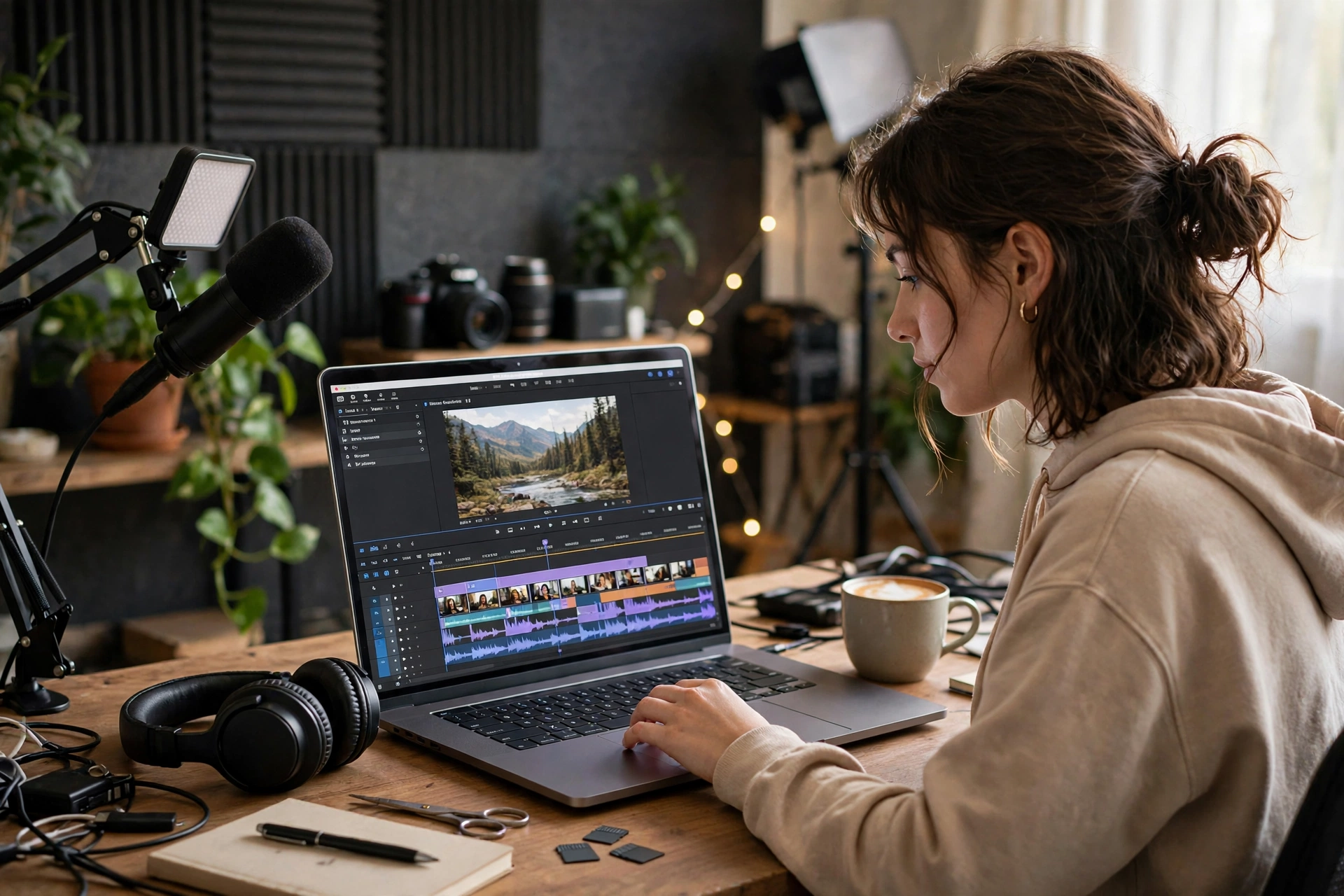
Stage 4: Editing — Cutting Hours Without Cutting Quality
Some editors work by transcript, some by timeline — the wrong style costs more time than the tool saves.
- Descript: Best for long talking-head videos and podcasts: deleting sentences as text beats scrubbing a timeline. No mobile app; free exports are watermarked.
- CapCut: Best for short vertical videos, with templates and caption styles on phone, desktop, and web. The editor is free; Pro is $19.99 a month in the US (about $15 billed annually). Some features, including auto captions and 4K export, have moved behind Pro — check inside the app.
- Canva: Best for thumbnails and social graphics, not video editing — Magic Design, Magic Media, Magic Write, and background removal live in the editor. Free includes 5 GB of storage and a limited AI allowance; background removal, Magic Resize, and Magic Eraser are Pro-only, around $15–$18 a month. See How to Make a YouTube Thumbnail Using Canva.
Pick one editor and learn it properly.
Stage 5: Captions — The Feature That Used to Be Free
Many viewers watch with the sound off — and this is where free plans have changed fastest.
- Descript: Captions come from the transcript you edited, so they match the words you kept. Free includes styling and export as burned-in captions or an SRT/VTT file, within 60 minutes a month.
- CapCut: Auto captions were its headline free feature, but CapCut moved them behind Pro in a 2025 restructure, per Descript’s November 2026 update. Some roundups still list them as free — verify in-app.
- YouTube Studio: YouTube’s own automatic captions are free — correct their errors before publishing. See How to Add Captions to Videos for Free.
Do not build your caption workflow around one free feature — keep a backup for the month a vendor moves it behind a paywall.
Stage 6: Repurposing and Publishing — One Long Video, Many Short Ones
AI clipping tools do the first pass well.
- OpusClip: Paste a YouTube link or upload a long video; it finds highlights, reframes them vertically, and adds captions. Free: 60 credits a month (one per minute of source video), 1080p clips — but watermarked exports, no editor, and clips expire after three days. Starter is $15 a month, watermark-free.
- Vizard: A strong alternative with a full editor on free: 60 credits a month, 60-minute uploads, 720p exports, three-day storage. Creator is $29 a month, or $14.50 billed annually, with 4K export and no watermark.
- Schedulers such as Buffer: Useful once you publish regularly.
For the full workflow, see How to Turn a Long Video Into Short Clips.
Keep, Replace or Skip: A Decision Table
| Tool | Keep it if | Replace it if | Skip it if |
|---|---|---|---|
| ChatGPT or Claude (free) | Weekly drafting | Cited research needed | Monthly writing |
| Canva (free or Pro) | Thumbnails weekly | One a month | You design elsewhere already |
| Descript | You edit long videos | Only short verticals | You edit on your phone |
| CapCut | Short verticals on your phone | You need transcript editing | Free captions, no watermark |
| OpusClip or Vizard | Long videos to clip | Only shorts already | You have no long videos |
| ElevenLabs | Narration with a license | You record your own voice | Free use for monetized videos |
The “keep” column is tied to frequency: a tool earns its place when used weekly.
What It Actually Costs
US list prices, checked October–November 2026.
- A $0 starter stack: ChatGPT or Claude (free) for ideas and scripts, Canva Free for thumbnails, CapCut Free for editing, Descript Free for captions, and YouTube Studio for extra captions — every stage, within free limits and export caps.
- A one-tool upgrade ($15–$20/month): Pay for the tool that removes your biggest bottleneck: Descript Hobbyist ($16/month billed annually), OpusClip Starter ($15), or ChatGPT Plus / Claude Pro ($20).
- A solo stack (about $50/month): One writing tool at $20, Canva Pro, and OpusClip Starter land near $50 a month — a reasonable ceiling for a weekly publisher. Beyond that, each subscription should save an hour a week.
AI Disclosure: What to Tell Your Audience and the Platform
YouTube’s rule turns on realism, not AI involvement: disclose anything that makes a real person appear to say or do something they did not do, alters footage of a real event or place, or generates a realistic scene that never happened. Set it in YouTube Studio under Attributes, by answering the “AI use” question.
Since May 2026, YouTube has also labelled photorealistic AI on its own — below the player on long videos, as an overlay on Shorts. Disclosure will not limit your audience or earnings, YouTube states, but repeatedly skipping a required disclosure can bring forced labels, removal, or suspension.
- No disclosure needed for AI help with a script, outline, title, thumbnail, or captions — or clearly unrealistic visuals.
- Disclosure needed for a realistic AI scene, a synthetic voice passed off as a real person, AI music, or altered footage of a real event.
- When in doubt, disclose — the label costs nothing.
- Check each platform separately — TikTok, Instagram, and Facebook each have their own AI labels.
- Do not impersonate anyone. Cloning a real person’s voice or face without permission is a separate problem.
Frequently Asked Questions
Do I need to pay for AI tools as a beginner?
No. A free stack — ChatGPT or Claude, Canva Free, CapCut Free, Descript Free, YouTube Studio — covers every stage within its limits. Pay only when a free limit stops you publishing.
Which AI tool is best for YouTube creators?
No single tool. Combine a chatbot for scripting, Descript for long videos, Canva for thumbnails, and OpusClip or Vizard for Shorts — starting with the stage that takes you longest.
Are AI-generated captions accurate enough to publish?
A good first draft, not a finished product. They handle clear speech well and struggle with names, terms, accents, and noise. Correct errors before publishing.
Can I use free AI tools for monetized videos?
Sometimes — check the license. ElevenLabs’ free plan has no commercial license, so no monetized use. Others give ownership but add watermarks or resolution caps.
Will using AI tools hurt my channel?
Using AI for drafting, editing, captions, and clipping does not by itself harm a channel; YouTube states disclosure does not affect recommendations or earnings. What hurts is mass-produced content with no original value.
The Bottom Line
The AI tools worth using remove a specific bottleneck — most creators need only three or four. Start free: a chatbot for scripts, Canva for thumbnails, CapCut or Descript for editing, and OpusClip or Vizard for repurposing. Pay only when a free limit stops you publishing.
Keep the part that is yours. AI can draft the script, cut the pauses, add the captions, and find the clip — but the idea, the facts, and the voice your audience recognizes are still your job.