Introduction
ChatGPT is most useful at work not as a question-answering machine, but as a drafting, organizing, and thinking assistant: it turns rough notes into clean output, long documents into short briefs, and vague ideas into structured plans. The quality of what you get depends on the quality of what you give it — a clear task, enough context, a format, and a rule not to invent facts.
This guide gives you 15 practical examples, each with a prompt pattern you can copy and adapt. Start with the low-risk ones — drafting, summarizing, and organizing — and build up to analysis and planning as you learn to check the output.
The prompt pattern behind all 15 examples
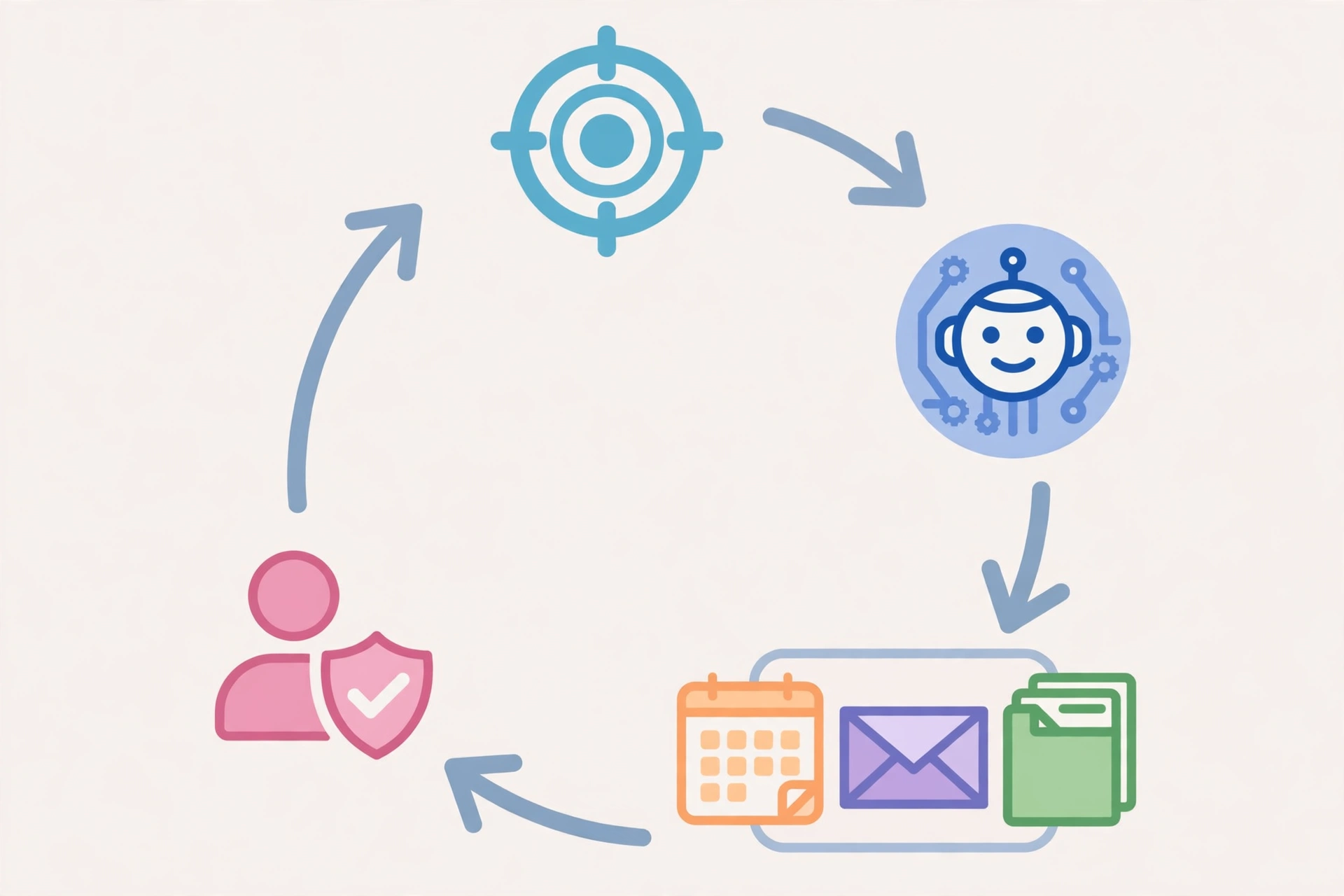
Most good work prompts contain four parts: a role (“act as a careful editor”), the task (“turn these notes into…”), the context (audience, purpose, constraints), and the format (length, structure, tone). Add one more rule that matters for work: “Do not invent information. Write ‘not stated’ for anything not in the source.” That single line prevents the most common and most embarrassing AI mistake at work — a confident, plausible detail that was never true.
Writing and communication
1. Draft a professional email from rough notes
Prompt: “Turn these notes into a professional email to my manager. Keep the tone respectful and concise, preserve the meaning of my notes, and do not invent information. Notes: [paste your notes]”
Use it for: status updates, requests, and follow-ups where you know what to say but not how to phrase it.
2. Improve an email without changing its meaning
Prompt: “Rewrite this email so it is clearer and more polite, keep it under 100 words, and keep my main request unchanged. Do not add information that is not already present. [paste email]”
Use it for: messages to clients or senior colleagues where tone matters and accuracy is non-negotiable.
3. Write a follow-up email after a meeting
Prompt: “Write a follow-up email after a meeting about [topic]. Include a recap of the key points, assigned responsibilities, and next steps with deadlines. Use a clear and polite tone. Do not invent owners or deadlines that were not agreed. [paste notes]”
Use it for: closing the loop the same day, while decisions are still fresh.
4. Draft a meeting invitation with an agenda
Prompt: “Draft a meeting invitation for a session about [topic]. It will last [time] and include [attendees/roles]. Outline agenda items with time estimates, goals, and preparation required, in calendar-invite format.”
Use it for: meetings that would otherwise start with ten minutes of figuring out why everyone is there.
Meetings and notes
5. Turn meeting notes into action items
Prompt: “Analyze these meeting notes and organize them into: 1) Decisions made, 2) Action items, 3) Owner for each action item, if explicitly mentioned, 4) Deadlines, if mentioned, 5) Open questions. Do not infer an owner or deadline if it is not stated in the notes. [paste notes]”
Use it for: every meeting you attend. This is the single highest-value work habit on this list.
6. Summarize a long document or email thread
Prompt: “Summarize this document for a busy manager in five bullet points, then list any risks it mentions and any decisions it asks for. Clearly separate information stated in the document from your interpretation. [paste or upload document]”
Use it for: reports, threads, and policies you need to understand in minutes, not hours. For PDFs specifically, see our guide to summarizing a PDF with AI.
7. Prepare questions before a meeting
Prompt: “I have a meeting about [project]. My role is [role] and the objective is [objective]. Create a preparation checklist with questions I should ask, information I should have ready, potential risks, and decisions that may need to be made.”
Use it for: meetings where you want to look prepared rather than reactive.
Planning and analysis
8. Turn a procedure into a checklist
Prompt: “Convert this procedure into a practical checklist, organized into Before, During, and Verification steps. Keep each step short and actionable, and do not remove safety or verification steps. [paste procedure]”
Use it for: deployments, onboarding steps, and any process people keep getting slightly wrong.
9. Brainstorm ideas, then narrow them down
Prompt: “Give me ten ideas for [campaign, feature, or event], then pick the three easiest to do on a small budget and explain why. Avoid ideas that require [constraint].”
Use it for: the blank-page stage. The second half of the prompt — the narrowing — is what makes brainstorming useful instead of just long.
10. Compare options in a table
Prompt: “Compare [option A] and [option B] for [use case] in a table with these columns: cost, effort to set up, main strengths, main risks, and best for. End with a recommendation and the one question I should answer before deciding.”
Use it for: tool choices, vendor shortlists, and approach decisions. Always verify prices and features yourself before committing — AI output can be out of date.
11. Analyze spreadsheet data in plain English
Prompt: “Analyze this data and explain the three most important patterns in plain English, with the numbers that support each one. Flag anything that looks like an error or an outlier rather than treating it as a trend. [paste data or upload file]”
Use it for: monthly figures, survey results, and sales data. Check every number it quotes against the source before presenting it.
Learning and creating
12. Explain a complex topic simply
Prompt: “Explain [topic] to someone who is new to it, using a real-world analogy and one worked example. Avoid jargon, and say clearly where the analogy breaks down.”
Use it for: onboarding yourself into a new domain, or preparing an explanation for a non-technical colleague.
13. Create a learning plan for a new skill
Prompt: “Create a four-week learning plan for [skill] for someone who can spend 30 minutes a day. Include what to practice each week, one free resource type per week, and a small project to finish at the end.”
Use it for: a new tool, a programming language, or a work skill you need next quarter, not someday.
14. Draft an outline for a report or presentation
Prompt: “Create an outline for a [report/presentation] about [topic] for [audience]. The goal is [goal]. Include an opening, three main sections with two points each, and a closing recommendation. Do not write the full text yet.”
Use it for: starting structured instead of staring at a blank document — and for getting agreement on structure before you invest in writing.
15. Prepare for a difficult conversation
Prompt: “Help me prepare for a conversation with [role] about [issue]. Suggest three opening lines, the key points I need to make, likely objections and calm responses to each, and what a good outcome would look like.”
Use it for: feedback, negotiation, and scope discussions. Rehearsing with AI is private, low-stakes, and surprisingly effective.
What not to paste into ChatGPT at work
Before you use any of these, check your employer’s policy. As a general rule, do not paste confidential information: customer personal data, passwords or credentials, unreleased financial figures, legal documents, trade secrets, or anything covered by a non-disclosure agreement. If a task needs that material, use your organization’s approved AI tool, or work from a redacted version with names, numbers, and identifiers removed.
Also remember: AI output can contain mistakes, outdated information, or incorrect assumptions. Review important information before relying on it, particularly for legal, financial, employment, or business-critical decisions. The human check is not optional polish — it is the step that makes the workflow safe.
A one-week way to start
- Day 1–2: Use examples 1 and 2 only — rewrite emails you have already written, and compare the results with your originals.
- Day 3–4: Add example 5 — turn one real set of meeting notes into action items, and check every owner and deadline against the notes.
- Day 5: Try example 6 on a document you already know well, so you can spot anything it gets wrong.
- Week 2: Add one planning example (8, 9, or 10) and one learning example (12 or 13).
Starting with low-risk, easy-to-check tasks builds the checking habit that makes the higher-value uses safe.
Frequently asked questions
Will ChatGPT replace my judgment at work?
No — and it works best when it does not try to. It drafts, organizes, and suggests; you decide, verify, and take responsibility for what goes out under your name.
Why do my prompts give generic answers?
Usually because the prompt is generic. Add the audience, the purpose, the constraints, and the format you want, and tell it not to invent facts. One specific prompt beats five vague ones.
Can I use ChatGPT for confidential work documents?
Only if your employer explicitly allows it for that material. Otherwise, redact identifiers or use an approved internal tool. When in doubt, do not paste it.
How do I check AI output reliably?
For numbers and facts, check against the source document. For promises in a draft email, check each one against what you can actually deliver. For recommendations, ask what assumption they depend on — then verify that assumption.