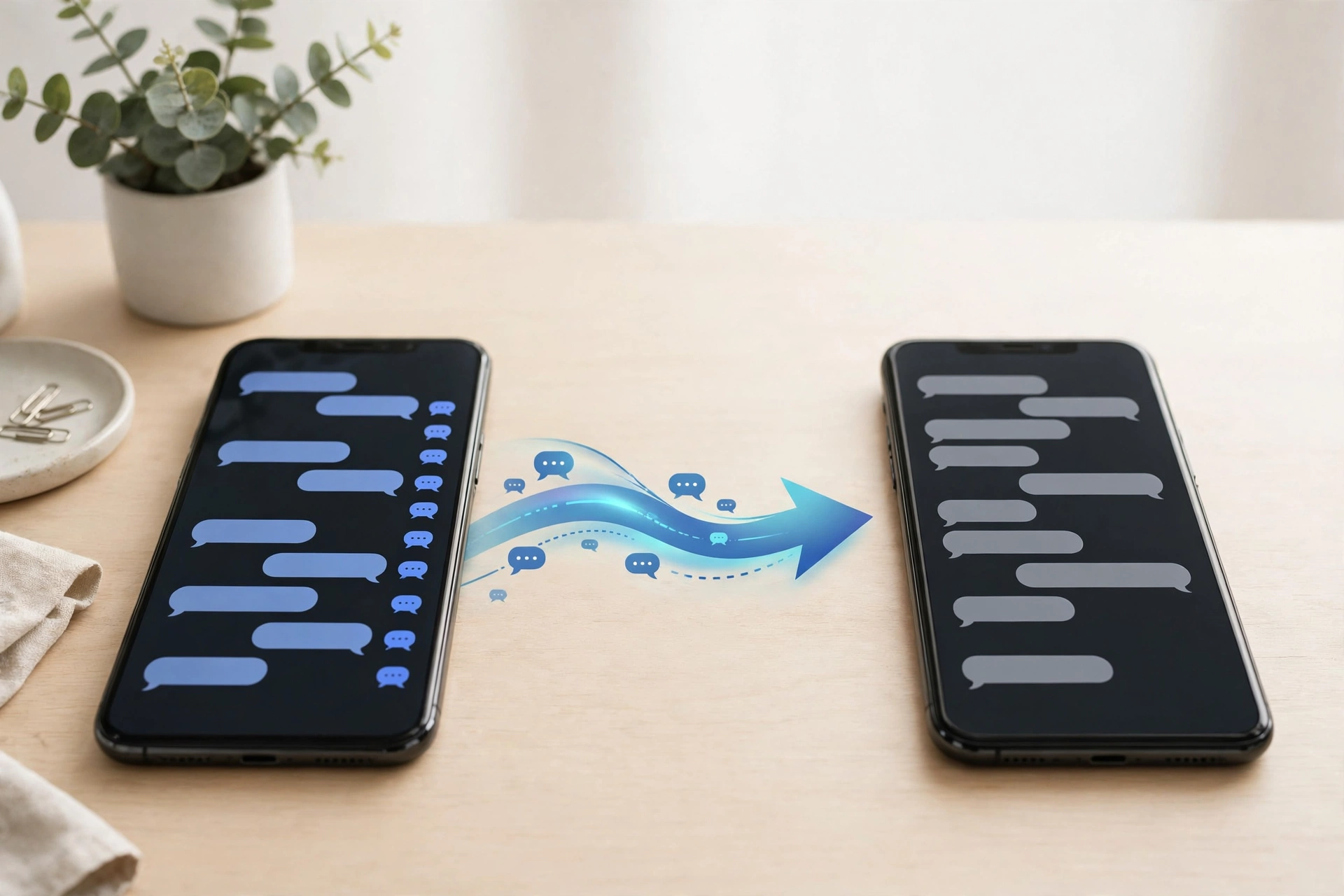
Moving to a new phone is stressful enough without wondering whether years of WhatsApp conversations will survive the switch. WhatsApp has two official ways to move your chats, and both keep your messages. The direct transfer is faster and does not depend on a cloud backup that may be out of date. The backup route is the only one that works if you lose the old handset.
The catch is timing. The direct transfer only works before WhatsApp is activated on the new phone. If you have already verified your number on the new device, that option is gone, and you will need a backup instead.
Work in this order: back up on the old phone first, always. Even if you plan to use a direct transfer, a backup costs nothing and it is your fallback when a direct transfer fails.
Before You Start: Three Rules
- Keep the same phone number. Every method requires the same phone number on both phones. Your chat history belongs to your phone number, not to the handset.
- Do not set up WhatsApp on the new phone early. A chat transfer has to happen before WhatsApp is activated there. WhatsApp cannot merge new chats with old ones.
- Do not wipe the old phone yet. Keep it powered on and untouched until you have verified the new one. Do not delete WhatsApp from the old phone until you have checked the transferred chats on the new device.
Also update WhatsApp to the current version on both phones, charge both phones, and confirm the new phone has enough free storage for your chat history.
Route 1: Direct Transfer Over Wi-Fi (Fastest)
This is the method WhatsApp recommends when both phones are in front of you and use the same platform — Android to Android, or iPhone to iPhone.
- On the old phone, open WhatsApp and go to Settings > Chats > Transfer chats, then tap Start. Accept the permissions.
- Install WhatsApp on the new phone and open it. Follow the setup screens until you reach the transfer step, where the app shows a QR code.
- Scan that QR code with the old phone. The two devices connect locally and the transfer begins over Wi-Fi.
- Keep both phones nearby, unlocked, and powered until the transfer completes. Messaging is paused while it runs.
The transfer is direct between the two devices: WhatsApp says it cannot see the data you transfer, and the data does not go to the cloud unless you create a backup afterwards.
Route 2: Back Up and Restore (Best If the Phones Cannot Be Together)
If the phones cannot be together, or WhatsApp is already active on the new device, use the backup route.
On Android — back up to Google Drive:
- On the old phone, open WhatsApp, tap the three-dot menu, then Settings > Chats > Chat backup.
- Choose the Google account to back up to, and tap Back up. Make a fresh backup the same day you switch — WhatsApp restores only what existed at the last backup timestamp.
- On the new phone, sign in to the same Google account, install WhatsApp, verify the same number, and tap Restore when the app offers to restore from Google Drive.
On iPhone — back up to iCloud:
- On the old phone, open WhatsApp, go to Settings > Chats > Chat Backup, and tap Back Up Now. The iPhone must be signed in to iCloud with the same Apple ID you will use on the new device, and iCloud Drive must be on.
- On the new iPhone, sign in with the same Apple ID, install WhatsApp, verify the same number, and restore when prompted.
If your Android phone has no Google Drive access, local backups sit in the WhatsApp/Databases folder as msgstore.db.crypt15 files, and can be copied across by USB. That is a fallback, not the first choice.
Moving Between Android and iPhone
Chat history does not cross platforms through Google Drive or iCloud. A Google Drive backup will not appear on an iPhone, and an iCloud backup will not appear on Android. Cross-platform moves have their own official paths:
Android to iPhone — Apple’s Move to iOS app:
- The iPhone must be new or factory reset, on iOS 15.5 or above, and sitting on the Apps & Data setup screen. Android 5 or above is needed on the old phone.
- Install Apple’s Move to iOS app on the Android phone, and follow its steps during the iPhone’s setup. WhatsApp notes that other data transfer apps are not supported, and call history does not come across.
iPhone to Android — WhatsApp’s Transfer to Android:
- The receiving Android phone needs Android 12 or newer for the full flow (Android 6 or above for the basic transfer), and WhatsApp must not be activated on it yet.
- On the iPhone, update WhatsApp, then open Settings > Chats > Move chats to Android and follow the prompts, connecting the phones as instructed.
Manufacturer migration tools such as Samsung Smart Switch and Xiaomi’s phone clone tools move apps and photos, but they do not carry WhatsApp chat history. Use the official WhatsApp or Apple flow, not the manufacturer’s.
What Transfers — and What Does Not
Messages and group chats, photos, videos, and voice messages all transfer with the official methods. Chat history is end-to-end encrypted, and the official tools handle the keys. What may not come across: call history on the Android-to-iPhone move, and anything sent after your last backup if you use the backup route. That is why the fresh backup on the day you switch matters.
Note that WhatsApp says chat transfer is not currently possible in the WhatsApp Business app — check the current Business app guidance if that is your situation.
If the Transfer Fails
- The transfer fails near the end, around 97%. Cancel it, make a fresh cloud backup on the old phone, and restore from the backup instead. This is the most common failure, and the backup route is the fix.
- The restore aborts partway, around 30 to 40%. Check that the new phone has enough free storage, that both phones are on stable Wi-Fi, and that you are signed in to the same Google account or Apple ID that holds the backup.
- No backup is found on the new phone. You are probably signed in to a different Google account or Apple ID than the one that made the backup, or the backup was made under a different phone number. Check both before you wipe the old phone.
- The new phone was already set up. For Android to iPhone, the Move to iOS flow only works during first-time setup — an iPhone already in use needs a factory reset first. Back up anything on it before you do that.
Frequently Asked Questions
Can I transfer WhatsApp chats without the old phone?
Only if you made a cloud backup first. A Google Drive backup (Android) or iCloud backup (iPhone) can be restored on the new phone with the same number and account. Without a backup and without the old phone, the chat history cannot be recovered.
Does transferring WhatsApp chats use mobile data?
The direct transfer runs over local Wi-Fi between the two phones. The backup route downloads from Google Drive or iCloud, so use Wi-Fi for that too — a large chat history can be several gigabytes.
Will my WhatsApp groups transfer?
Yes. Groups, group messages, and media all transfer with the official methods. You stay a member of your groups; nothing needs to be rejoined.
How long does a WhatsApp transfer take?
A direct transfer of a typical chat history takes a few minutes. A large history with years of photos and videos can take much longer — keep both phones charged and nearby until it finishes.
Should I delete WhatsApp from the old phone after transferring?
Only after you have opened WhatsApp on the new phone and confirmed your chats, groups, and recent messages are all there. Until then, the old phone is your only backup.
Keep Going: Related BlogPress Phone Guides
For the rest of the switch, see how to transfer data from Android to iPhone, how to transfer photos from iPhone to Windows PC, and how to back up your Android phone before a factory reset.