Switching from Android to iPhone is much easier than it used to be. Apple’s free Move to iOS app copies contacts, texts, photos, WhatsApp chats, and more over a direct Wi-Fi link, and the process takes only a few taps — as long as you do it at the right moment. The one thing that catches almost everyone out is timing: the transfer only works while the iPhone is at its initial setup screen. If you set the iPhone up first and start using it, the official route requires erasing it and starting over.
This guide covers the preparation, the transfer itself, what moves and what does not, the special case of WhatsApp, and the checks to run before you wipe the old phone.
Before you start: the preparation checklist
- Charge both phones. A transfer of a large photo library can take a long time. Plug both phones in, or at least make sure each is well above half charge.
- Check the sizes. Make sure everything you are moving — including what is on an external microSD card — will fit on the new iPhone. If the Android phone holds 200 GB of photos and the iPhone has 128 GB of storage, the transfer will fail partway through.
- Connect to Wi-Fi. Both phones need Wi-Fi on. Move to iOS creates a private Wi-Fi network between the two phones, so you do not need a router, but both phones should be on Wi-Fi.
- Update the apps. Install Move to iOS from the Google Play Store on the Android phone. Update WhatsApp and Chrome on the Android phone — Apple says Chrome needs to be current for your bookmarks to come across.
- Know your passwords. You will need the Google account password and, for WhatsApp, the same phone number on both phones.
- Do not start setting up the iPhone yet. If it is brand new, leave it at the Hello screen. If you have already set it up, you will need to erase it first: Settings > General > Transfer or Reset iPhone > Erase All Content and Settings. Back up anything on it first.
How to use Move to iOS, step by step
- On the iPhone, go through setup until you reach the Apps & Data screen, then tap Move Data from Android.
- On the Android phone, open the Move to iOS app and tap Continue. Agree to the terms, then tap Continue again.
- On the iPhone, tap Continue on the Move from Android screen. A ten-digit or six-digit code appears.
- Enter the code on the Android phone. The iPhone creates a temporary Wi-Fi network; if the Android phone asks, tap Connect to join it.
- On the Android phone, select the content you want to transfer — contacts, message history, camera photos and videos, photo albums, files and folders, accessibility and display settings, web bookmarks, email accounts, WhatsApp messages and media, voice memos, call history, and calendars — then tap Continue.
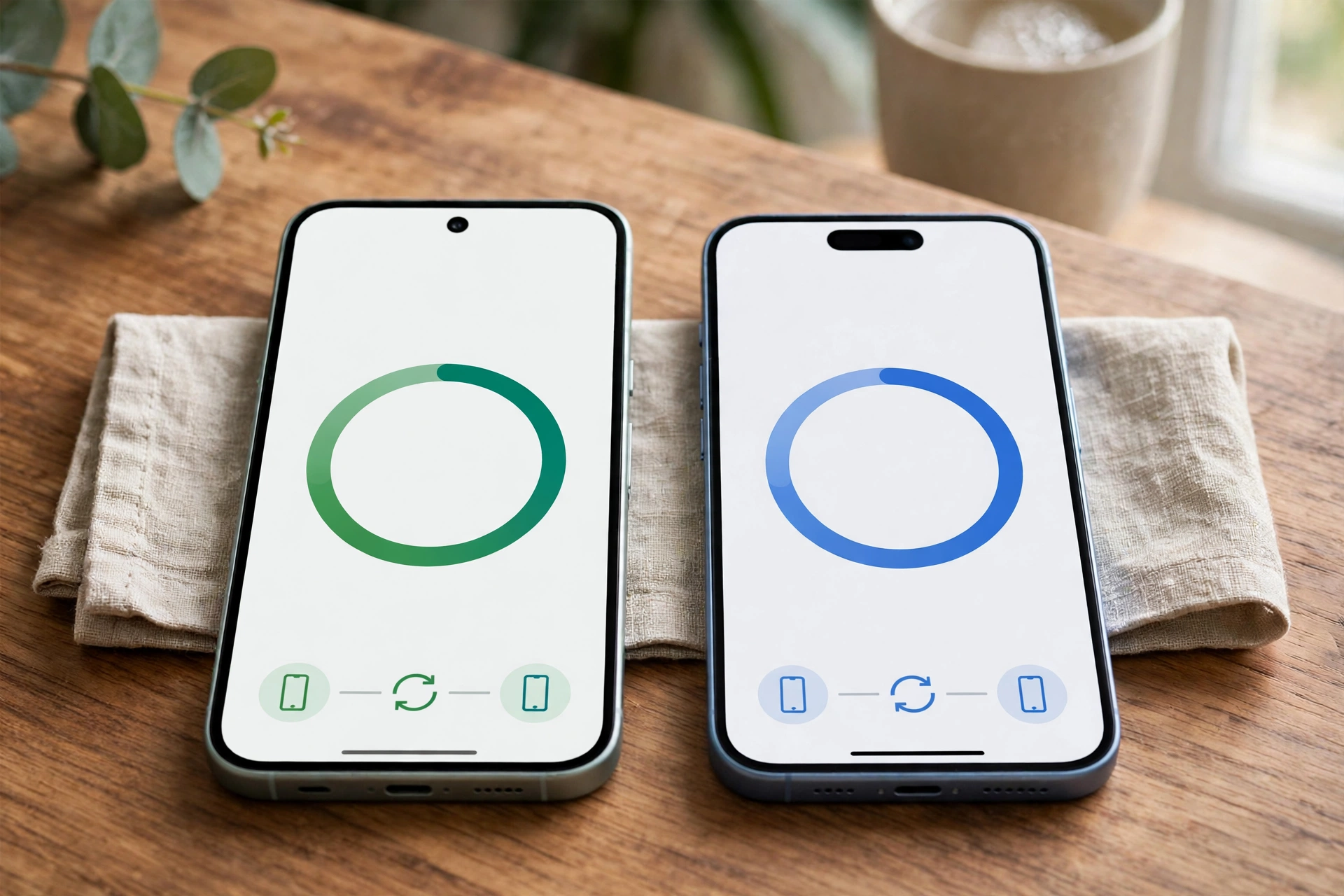
- Leave both phones alone until the loading bar on the iPhone finishes. Do not use either phone, do not take calls, and do not let either phone lock or lose power. The time depends on how much you are moving; a large photo library can take an hour or more.
- When the iPhone says the transfer is complete, tap Done on the Android phone, then tap Continue on the iPhone and finish setting it up.
- If any free apps you had on Android are available on the App Store and support the transfer feature, the iPhone will offer to download them.
Apple also lists a newer path that skips the app entirely on compatible phones running Android 17 or later, such as recent Pixel and Galaxy models. If your Android phone offers that option during iPhone setup, it works the same way — follow the on-screen prompts instead of installing Move to iOS.
What transfers and what does not
| Moves over | Does not move automatically |
|---|---|
| Contacts and call history | Music, books, and PDFs — move these manually |
| Text messages (SMS) and message history | Paid apps — Google Play purchases do not carry over |
| Camera photos and videos, photo albums | WhatsApp call history and display name |
| Files and folders | WhatsApp Business chats |
| WhatsApp chats and media (same number required) | Some app data — apps that do not support the transfer start fresh |
| Mail accounts, calendars, bookmarks | Content in apps that store data only locally without a transfer option |
| Accessibility and display settings | |
| Voice memos | |
| Some free apps, matched on the App Store |
The most common surprise is music, books, and PDFs. Apple is explicit: those need to be moved over manually. Copy them to a computer first, then sync or upload them to the iPhone through the appropriate app. Paid apps are a similar case — you will need to buy them again on the App Store if you want them.
Moving WhatsApp chats
WhatsApp is part of the Move to iOS transfer, but it has its own rules, and it is the part people most often get wrong.
- Use the same phone number. WhatsApp on the iPhone must be verified with the same number the Android phone used. If you are changing numbers, sort that out inside WhatsApp before you start.
- Do it during setup. The WhatsApp transfer only works while the iPhone is at its initial setup screen. Once the iPhone is set up, the only official way back is to erase it and start over.
- Select WhatsApp in Move to iOS. When Move to iOS asks what to transfer, select WhatsApp and tap Continue. On the Android phone, tap Start so WhatsApp prepares the export, then finish the transfer.
- Finish on the iPhone. After setup, install WhatsApp on the iPhone, sign in with the same number, and accept the prompt to import your chats.
What comes across: your account info, profile photo, individual and group chats with full history, photos, videos, voice notes, documents, and settings. What does not: call history, your display name (you set it again), payment data, and media received in Channels. WhatsApp Business chats cannot move this way — WhatsApp says the transfer is not supported for the Business app. And the moved chats are not backed up to iCloud until you create a fresh backup on the iPhone, so turn iCloud backup on inside WhatsApp after the move.
There is no cloud shortcut: a Google Drive WhatsApp backup cannot be restored on an iPhone, because Android backs up to Google Drive and iPhone backs up to iCloud, and the two formats are not interchangeable.
After the transfer: the verification checklist
Before you wipe or sell the Android phone, check each of these on the iPhone:
- Photos and videos: open the Photos app and check the count, and open a few older photos and videos to confirm they are full quality, not thumbnails.
- Contacts: search for a few people you call often, including anyone whose number you only had in the phone.
- Messages: open the Messages app and check that recent conversations are there.
- WhatsApp: open WhatsApp, confirm your chats and media are present, and start an iCloud backup.
- Mail and calendars: confirm your email accounts are signed in and your calendar events are showing.
- Two-factor access: this is the critical one. If your authenticator app or passkeys lived on the Android phone, confirm you can still sign in to your important accounts from the iPhone before you erase the old phone. Our Android backup guide explains how authenticator data can be lost in a wipe.
- Apps: download the free apps you need from the App Store and sign in to each one.
- Music, books, and PDFs: move these manually now, while the Android phone still has them.
Only when every check passes should you erase the Android phone. If you are selling or trading it in, remove your Google account first and reset it from Settings — never from Recovery Mode — so the next owner is not blocked by Factory Reset Protection.
If the transfer stalls or fails
- The code does not appear or does not work: restart both phones and start the setup again from the Apps & Data screen.
- The Android phone disconnects from the temporary Wi-Fi network: turn off any setting that automatically switches to mobile data when Wi-Fi is weak, and turn off apps that manage Wi-Fi connections. Keep both phones close together.
- The transfer stops partway: check the storage on the iPhone first — running out of space is the most common cause. Free space or reduce what you are transferring, then start over.
- Some photos are missing: check whether they were on a microSD card. Move to iOS copies what it can see; content on an SD card that was not included in the selection may need to be copied to internal storage or a computer first.
- WhatsApp did not transfer: it was probably not selected in Move to iOS, or the iPhone was already set up. The only official fix is to erase the iPhone and repeat the setup, selecting WhatsApp this time.
The bottom line
Do the transfer during the iPhone’s first setup, not after. Charge both phones, make sure the content fits, update WhatsApp and Chrome, and leave both phones alone until the loading bar finishes. WhatsApp needs the same number and must be selected in Move to iOS. And do not erase the Android phone until you have checked photos, contacts, messages, WhatsApp, mail, and — most importantly — your two-factor access on the iPhone.