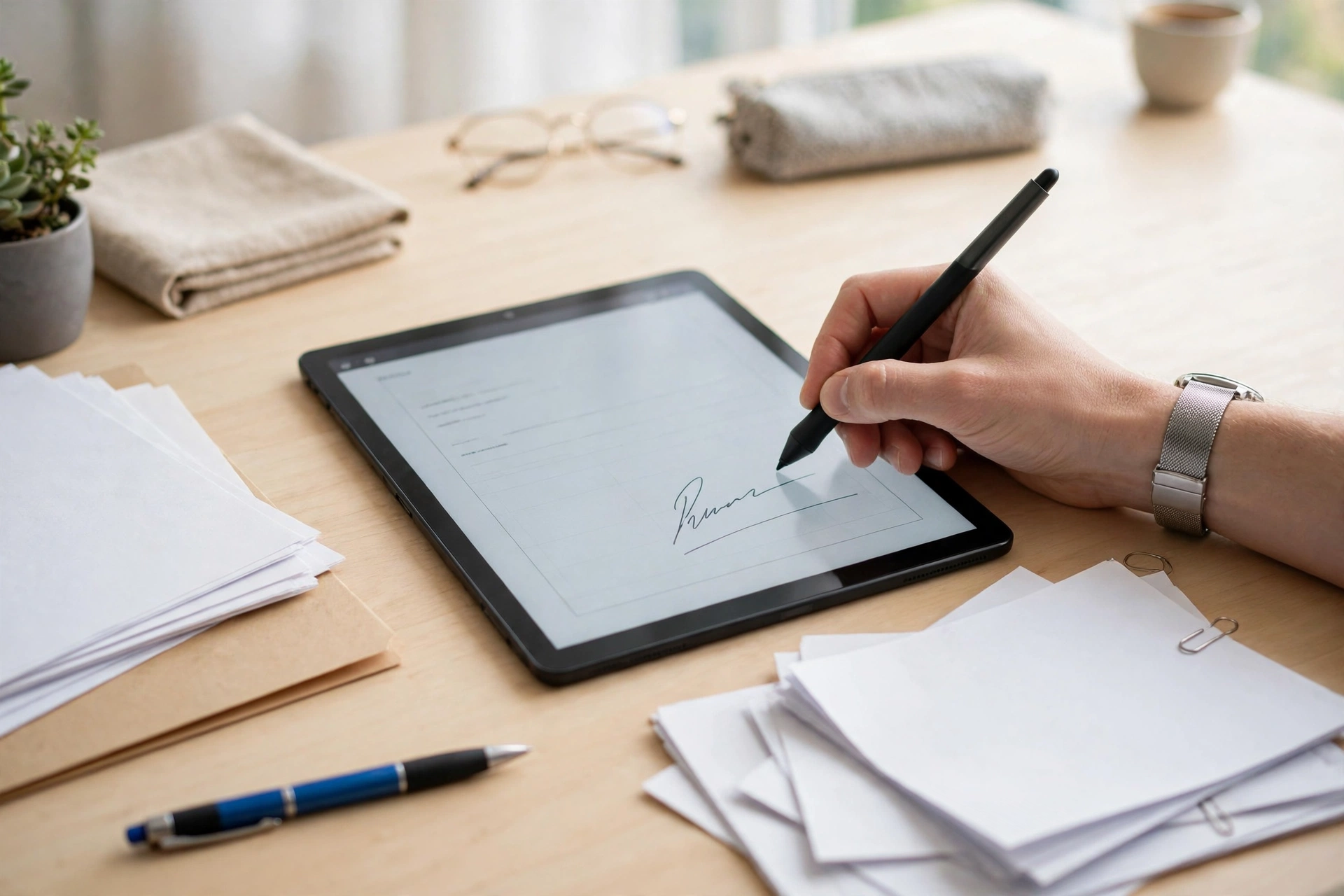
Signing a PDF used to mean printing it, signing it by hand, scanning it back in, and emailing a blurry copy. Nobody needs to do that anymore. Every major device already has a free way to put a signature on a PDF, and browser-based signers handle the rest in under a minute. Adobe Acrobat Pro, at around $24.99 a month, is overkill for the everyday job of signing a form someone sent you.
This guide covers the free method on each device, the two mistakes that ruin signed PDFs, and when a paid e-signature service is actually worth it.
What “Signing a PDF” Means
There are two different things people mean by signing a PDF, and the free tools handle the first one:
- Self-signing (electronic signature): you put your own signature and a date on a document someone sent you — a lease, an employment form, a permission slip. That is the everyday case, and it is free on every device.
- Certificate-based digital signatures: a cryptographic signature that proves the document has not been changed since you signed it. Free tools generally do not do this; it needs Acrobat Pro or a dedicated e-signature service.
A signature added with a free tool is an electronic signature, and electronic signatures are legally recognized for most everyday transactions under the US ESIGN Act and UETA, and the EU’s eIDAS regulation. Legal validity is about intent and consent, not about which software you used.
Method 1: Mac — Preview (Built In, Free, Best on Mac)
Preview ships with every Mac and has had signature support for years. It is genuinely excellent.
- Open the PDF in Preview.
- Click the Markup Toolbar button (the pencil icon).
- Click the signature icon (it looks like a cursive S) and choose Create Signature.
- Draw your signature with the trackpad, or hold a signed piece of paper up to your webcam.
- Click your saved signature to insert it, then drag it onto the signature line and resize it to fit.
- Save the file. Preview flattens the signature into the PDF, which is what you want.
Preview saves changes automatically, so choose File > Duplicate first if you want to keep the original untouched.
Method 2: Windows — Microsoft Edge (Built In, Free)
Windows has no first-party PDF editor comparable to Preview, but Edge is the default PDF viewer and it can draw and save. Open the PDF in Edge, use the Draw tool to sign freehand, and save. It is limited — freehand drawing only, with no reusable saved signature — so pair it with a saved signature image if you sign often.
For a reusable signature on Windows, use a free desktop reader that supports saved signatures: Adobe Acrobat Reader (the free tier includes Fill & Sign), Foxit Reader, or PDF-XChange Editor. In Acrobat Reader, go to Sign > Add Signature > Image, upload a transparent PNG of your signature, and reuse it on every document.
Method 3: iPhone and iPad — Markup (Built In, Free)
On iPhone and iPad, you can sign a PDF without installing anything:
- Open the PDF in the Files app (or in Mail, if it arrived as an attachment).
- Tap the Markup button.
- Tap the + button and choose Signature.
- Draw your signature with your finger, then drag it onto the signature line.
The file never leaves your device. For a guide to editing PDFs more broadly on any device, see how to edit a PDF for free on any device.
Method 4: Android — Adobe Acrobat Reader (Free Tier)
Android has no universal built-in PDF annotator, so the method varies by manufacturer. The reliable free option is Adobe Acrobat Reader:
- Install Adobe Acrobat Reader from the Play Store.
- Open the PDF, tap the pencil icon, and choose Fill & Sign.
- Tap Create Signature and draw or type your signature.
- Drag it onto the signature line and save.
The free version of Acrobat Reader is designed mainly for PDF form fields. If the PDF has no pre-built form fields, placing the signature exactly where you want it can be fiddly — a browser-based signer is easier for those files.
Method 5: Browser — Works on Any Device
If you are on a shared computer, a Chromebook, or a device with no good built-in option, a free browser-based signer is the fastest route. The flow is the same everywhere:
- Open the signing tool in your browser.
- Upload the PDF.
- Create your signature: draw it, type it in a handwriting font, or upload an image of it.
- Drag the signature onto the signature line; resize or rotate it to fit.
- Add the date in the format the form expects.
- Download the signed PDF.
Some browser signers run entirely on your device, so the file never leaves your computer. Others upload it to a server. Before you use one for a sensitive document, check where it processes your file — the same privacy rule from our PDF editing guide applies here: do not upload a contract, medical report, or anything under an NDA to a server you have not checked. And watch for tools that advertise themselves as free but charge for downloading the signed version, or are free only for the first document.
Make a Reusable Signature Image
If you sign PDFs more than once a month, make a reusable signature image once and reuse it everywhere:
- Sign your name on plain white paper with a black pen.
- Photograph it in bright, even light, or scan it.
- Remove the white background with a free tool so the image has a transparent background, and save it as a PNG.
- Keep the PNG on your phone and computer. Most PDF tools — Acrobat Reader, Preview, browser signers — let you insert an image signature in one tap.
The Two Mistakes That Ruin Signed PDFs
- Not flattening the file. A signature added as an annotation sits on top of the page as a separate layer, and some tools let the recipient move or delete it. Flattening merges the annotation into the page permanently. Depending on the tool it is called Export as PDF (Preview), Print to PDF, Flatten, or Save a Flattened Copy. Always flatten before you send.
- Signing the wrong copy. If you sign a draft and the sender later sends a revised version, your signature belongs to the old version. Confirm you have the final document before you sign, and keep a copy of exactly what you signed.
When to Use a Paid E-Signature Service
Free tools cover self-signing. Pay for a service like DocuSign, HelloSign, or Adobe Sign when you need one of these:
- An audit trail: timestamps, IP addresses, identity verification, and a tamper-evident seal — the evidence that a signature happened, not just the image of one.
- Sending for signature: you need someone else to sign, with reminders, an order of signers, and a record of who signed when.
- Certificate-based signatures: a cryptographic guarantee the document has not changed since signing.
For a lease, a job form, or a school permission slip, none of that is necessary. For a contract where the signature itself might be disputed, it is.
Frequently Asked Questions
Is it free to sign a PDF in Adobe Acrobat Reader?
Yes. The free version of Adobe Acrobat Reader includes Fill & Sign, which lets you draw or type a signature. That is different from Acrobat Pro, the paid subscription, which adds editing, certificate-based signatures, and sending documents for signature.
Is a signature added in a browser tool legally valid?
For most everyday transactions, yes. Under the US ESIGN Act, the EU eIDAS regulation, and the UK Electronic Communications Act, a signature does not need to be cryptographically verified to be legally valid. What matters is intent and consent — that you meant to sign. High-stakes contracts are the exception, not the rule.
Can I sign a PDF on my phone without an app?
Yes, on iPhone and iPad through the built-in Markup tool in Files or Mail. On Android, the browser method works without installing anything. If you sign often, installing Acrobat Reader is worth the one-time effort.
Why does my signature look blurry after I save?
The signature image is probably low resolution, or the tool stretched it. Use a photo or scan taken in bright light, keep the signature’s proportions when resizing, and flatten the file before sending.
Can I remove a signature after adding it?
If the file has not been flattened, you can usually select the signature annotation and delete it. Once flattened, the signature is part of the page and cannot be removed without editing the PDF itself — which is exactly why flattening matters.
Keep Going: Related BlogPress PDF Guides
For the rest of the PDF toolkit, see best free PDF editors for Windows and Mac, how to compress a PDF without losing readability, and how to merge PDF files for free.