Introduction
Most password advice you learned years ago is now out of date. Forcing a short password to contain one uppercase letter, one number, and one symbol does not make it strong — length and uniqueness do. Current guidance from the U.S. National Institute of Standards and Technology (NIST SP 800-63B, Revision 4) and the Cybersecurity and Infrastructure Security Agency (CISA) points the same way: make passwords long, make each one unique to one account, and let a password manager remember them for you.
This guide shows you how to do that in practice, including the few passwords you still need to memorize yourself.
The three rules that matter
1. Long. CISA advises at least 16 characters, and longer is better. NIST requires services that use a password alone to accept at least 15 characters, and to allow up to at least 64. A 16-character password is dramatically harder to guess than an 8-character one, even if the shorter one looks more complicated.
2. Random. A password built from a pattern you invented — a name, a date, a word with letters swapped for numbers — is guessable in ways a random string is not. Let a generator choose, or use random words you did not pick for meaning.
3. Unique. Never reuse a password across accounts. Reuse is the most common way a single breach becomes many: if one site leaks your password and you used it elsewhere, every other account using it is exposed, even if those sites were never breached.
Everything else — complexity rules, forced monthly changes, clever substitutions — is secondary, and NIST now advises services not to impose forced composition rules or scheduled password changes. Change a password when there is evidence it has been compromised, not on a calendar.
Use passphrases for the passwords you must remember
You only need to memorize a handful of passwords: your password manager’s master passphrase, your main email account, and perhaps your computer login. For those, use a passphrase of several unrelated random words — CISA suggests 5 to 7 words. The UK’s National Cyber Security Centre similarly recommends three random words as a minimum for everyday accounts.
The key word is random. A line from a song, a quote, or words that describe you are not random, and an attacker can guess them from what is known about you. Use a generator or a dice-based word list to pick the words, and picture a silly scene linking them together to help you remember. A passphrase like “correct horse battery staple” is famous as an example — do not use that exact one; generate your own.
For every other account, you do not need to remember the password at all. That is what the manager is for.
Let a password manager generate and store the rest
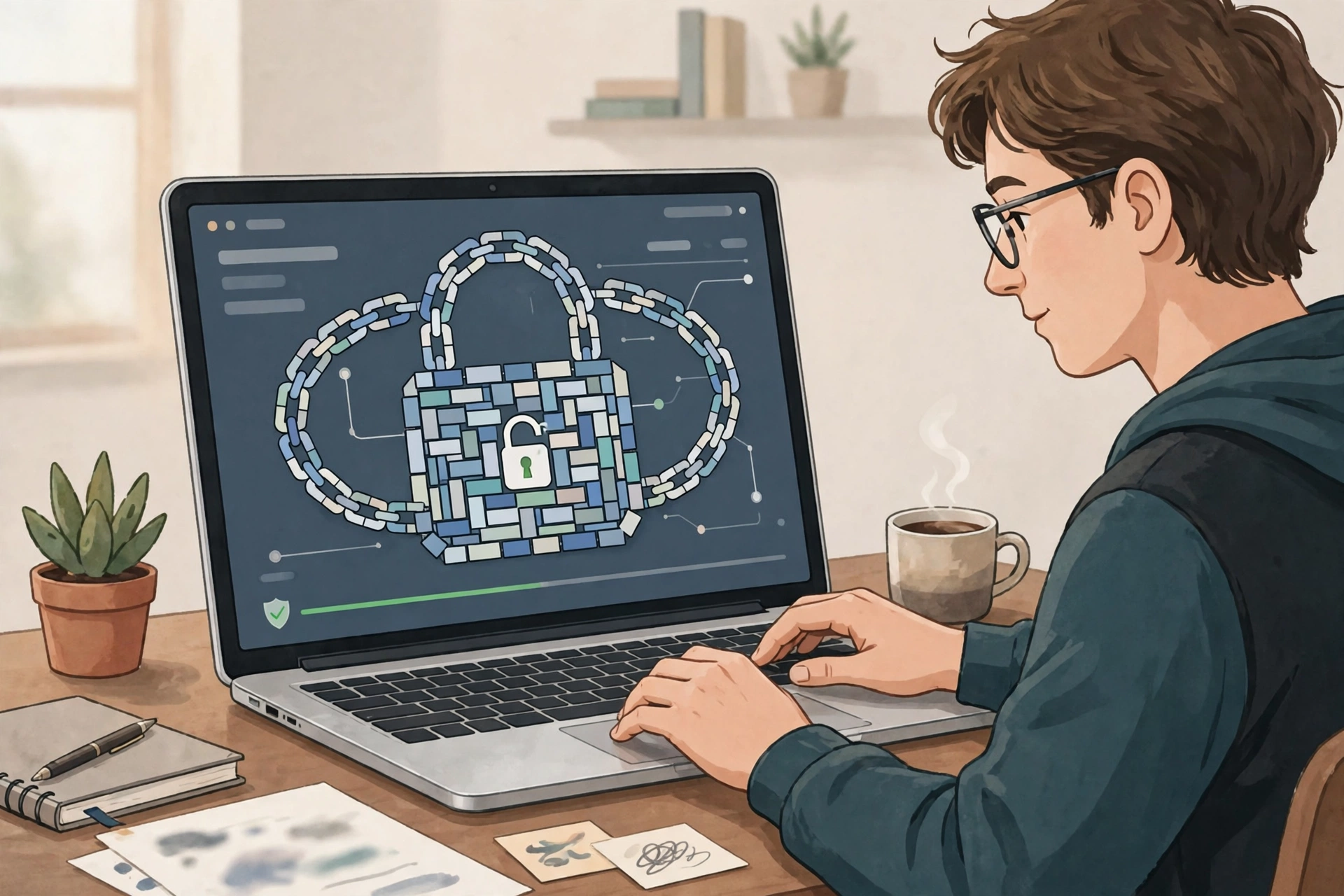
A password manager is an encrypted vault that creates long, random passwords, fills them in for you, and keeps each one unique. The browser or phone’s built-in manager is a reasonable start, and a dedicated manager adds features such as sharing, breach alerts, and passkey storage.
Set it up properly:
- Protect the vault first. Your master passphrase should be long, random, and used nowhere else. Turn on multi-factor authentication for the manager itself where available.
- Generate, don’t invent. When you sign up or change a password, use the manager’s generator at 20 characters or more, and save it before leaving the page.
- Save a recovery plan. Write down the master passphrase and any recovery code on paper, and store it somewhere safe at home — not in an email, a note on your phone, or a photo. If you forget the master passphrase and have no recovery option, the vault is unrecoverable by design.
- Import and clean up. Import passwords saved in your browser, then work through the duplicates: replace every reused password with a generated one, starting with email, banking, and shopping accounts.
The password triage: which accounts to fix first
If you have dozens of reused passwords, fix them in this order:
- Your main email account. Email is the recovery route for almost everything else. A compromised inbox lets an attacker reset your other accounts.
- Your password manager itself. Its master passphrase and multi-factor settings guard the whole vault.
- Banking and payment accounts. Unique passwords plus multi-factor authentication here are non-negotiable.
- Work and cloud accounts. These often hold documents, photos, and access to other services.
- Shopping and social accounts. These hold payment details and personal information, and are frequent phishing targets.
- Low-risk accounts. Forums, newsletters, and throwaway sign-ups come last — but still give them unique generated passwords, since the manager makes that free.
Add a second factor wherever it matters
A password, however strong, is only one factor. Turn on multi-factor authentication for email, banking, your password manager, and social accounts. An authenticator app or a hardware security key is stronger than a text-message code, which can be intercepted. And where a service offers a passkey, consider it: passkeys replace the reusable password with a device-bound credential that cannot be phished in the usual way, and they are covered in more detail in our passkey guide.
What to do when a password leaks
If a service tells you your password was exposed, or you find it in a breach notification:
- Change it on the real site — go there directly, never through a link in an email about the breach.
- Change it anywhere else you reused it, and replace those with unique generated passwords.
- Turn on multi-factor authentication if it was not already on.
- Check the account for unfamiliar activity, forwarding rules, or connected apps, and remove anything you do not recognize.
Do not wait for a breach notice to fix reuse: the triage above is worth doing before anything goes wrong.
Mistakes to avoid
- Writing passwords on sticky notes or in a spreadsheet. One paper copy of a master passphrase, kept safely at home, is a recovery plan. A list of all your passwords in plain text is a breach waiting to happen.
- Sharing passwords by email or chat. If someone genuinely needs access, use the manager’s sharing feature or create a separate account for them.
- Using the same “base” password with a site name added. Attackers know this pattern; if one version leaks, the others are easy to derive.
- Trusting a password strength meter blindly. Meters measure length and character variety, not whether the password is reused or already public. A long, unique, generated password beats a “very strong” password you use everywhere.
Frequently asked questions
Is a passphrase really as strong as a random string of characters?
For the passwords you must memorize, yes — length is what matters most, and several random words give you length you can actually remember. For accounts the manager handles, a fully random generated password is still the best choice.
How long should my passwords be?
Aim for at least 16 characters (CISA’s guidance), and 20 or more when a generator makes it for you. Your master passphrase should be at least five random words.
Do I still need to change passwords regularly?
No. NIST advises against scheduled changes. Change a password when it may have been compromised, when you reused it somewhere that was breached, or when you shared it.
What if I lose access to my password manager?
That is why the recovery plan matters: a written master passphrase and recovery code, stored safely offline, plus multi-factor backup codes for the manager and your email. Set these up before you need them.
Are passkeys going to replace passwords?
For services that support them, passkeys are the stronger option and remove the reusable secret entirely. But passwords are not disappearing overnight, so a manager full of long, unique passwords remains essential for everything else.