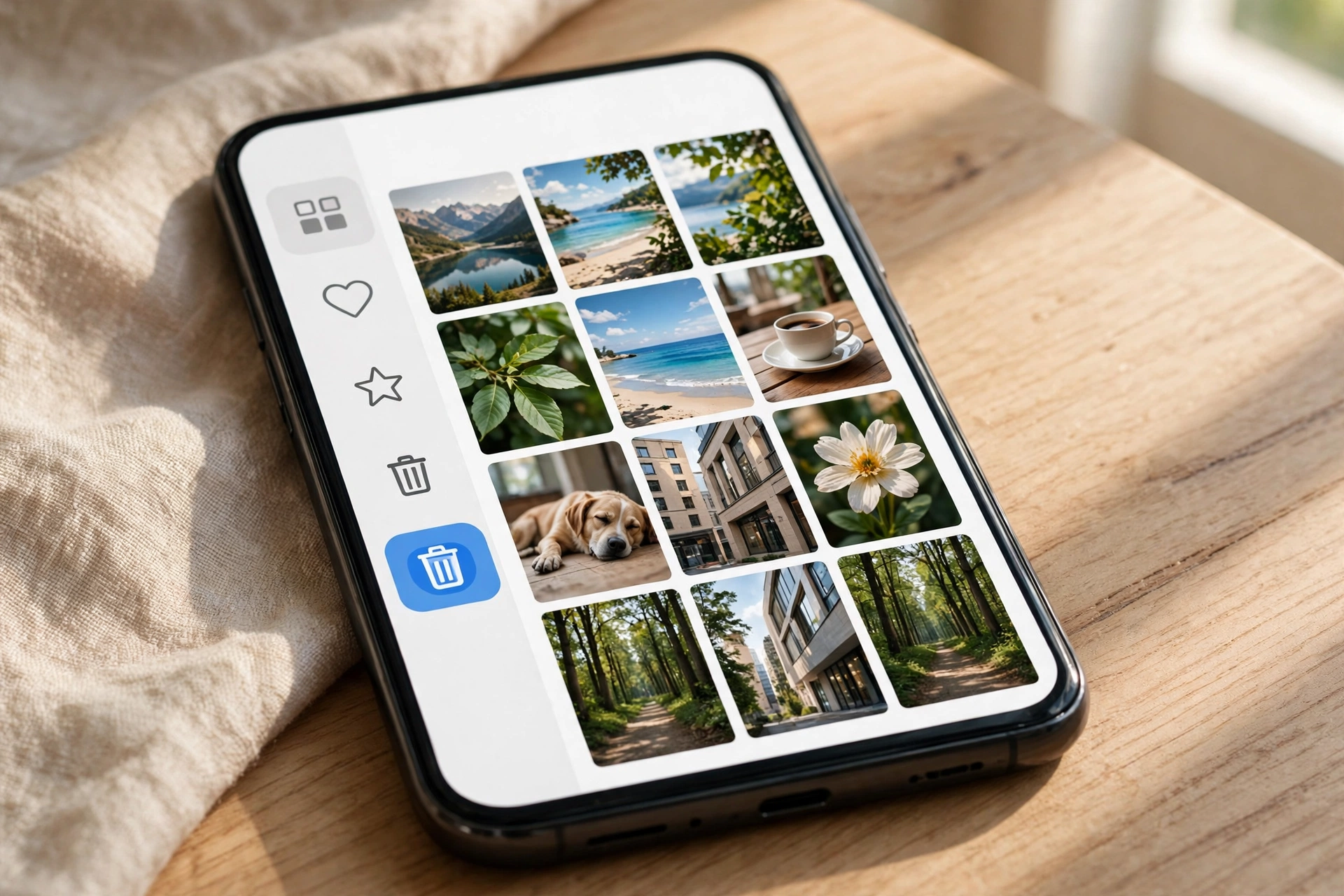
Deleting a photo in Google Photos does not erase it instantly. It moves to the trash, where it sits for a limited time before being permanently deleted. That window is your recovery opportunity — and it is shorter than most people expect. Backed-up photos stay in the trash for 60 days; photos that were never backed up stay for only 30 days. Once the window passes, Google is clear that items that are permanently deleted cannot be restored.
This guide works through the recovery checks in order — fastest and most reliable first — explains the two different clocks, and covers what to do when the trash is already empty.
First: stop and do not overwrite anything
If the photo was only on the phone’s internal storage and was never backed up, every new photo you take, file you download, or app you install can overwrite the storage where the deleted photo lived. Stop taking new photos, turn off automatic downloads, and do the checks below before anything else. Do not factory reset the phone — a reset wipes internal storage, including any chance of recovery.
Step 1: Restore from Google Photos Trash
This is where most lost photos turn up, and it works even if you deleted the photo from your phone’s gallery app, as long as it had been backed up first.
- Open the Google Photos app.
- Tap Collections at the bottom (older versions call it Library), then Trash.
- Find the photo — the trash shows how many days are left before each item is permanently deleted.
- Touch and hold the photo, tap Restore, and it returns to your library and gallery.
On the web, the same trash is at photos.google.com under Trash in the left menu. Restoring from the web works the same way.
The two clocks
Google applies two different retention windows, and which one applies depends on whether the photo was backed up:
| Situation | How long it stays in Trash |
|---|---|
| Photo was backed up to your Google account | 60 days |
| Photo was never backed up (Android 11 and newer) | 30 days |
If you are not sure whether a photo was backed up, check the trash anyway — the item itself shows its remaining time. And turn backup on for the future: open Google Photos, tap your profile picture, and turn on Backup. Backed-up items get the 60-day window instead of 30.
One more Google rule to know: if you are inactive in Google Photos for 2 years or more, your content may be deleted. That is a separate, longer clock, but it is worth knowing if you are recovering photos from an old account.
Step 2: Check your phone’s gallery trash
Google Photos is not the only trash on the phone. Most phone makers keep a second, separate recycle bin in their own gallery app, and a photo deleted from one app may still be in the other.
- Samsung Gallery: open the Gallery app, tap the menu, then Recycle bin. Samsung keeps items for 30 days, and only if the recycle bin was switched on before you deleted.
- Other Android galleries: look for Trash, Recycle bin, or Recently Deleted in the gallery app’s menu. Most manufacturers retain deleted images for 15 to 30 days.
- iPhone: open the Photos app, go to Albums, scroll to Recently Deleted, and restore from there. Apple keeps deleted photos for 30 days.
Check every trash you have before moving on. A photo deleted in Google Photos may still exist in the Samsung Gallery bin, and vice versa.
Step 3: Check whether a backup exists somewhere else
If the trash is empty, think about where else a copy might live:
- Google Photos on another device. If you have Google Photos on a tablet or a second phone, open it there — a copy may still be present if that device has not synced the deletion yet. Turn off its internet connection first, so it cannot sync the deletion before you look.
- Google Drive. Photos saved to Drive, or shared in a Drive folder, are separate from Google Photos and are not deleted when you delete from Photos.
- Cloud backups. Check OneDrive, Dropbox, or iCloud if you have ever used them. Samsung Gallery used to sync with OneDrive, but that direct sync ended on September 30, 2026, so older copies may still be in OneDrive even though new ones no longer sync.
- A computer. If you ever transferred photos to a PC, check the Pictures folder and any external drives. Our iPhone to Windows transfer guide covers how those copies are made — and how easily they are forgotten.
- Shared albums and messages. If you shared the photo in a shared album, a chat, or an email, the copy in the shared album or message may still exist even after you deleted your own.
Step 4: Ask Google Drive support — but only if the deletion was recent
Because Google Photos shares storage infrastructure with Google Drive, Google Drive specialists can sometimes roll back storage deletions if the event happened recently, typically within the last 21 to 30 days. Go to the Google Drive Help Center while signed in to your account and request a file restoration. This is not guaranteed, and it only helps for recent deletions — it is not a way back from a photo deleted months ago.
Step 5: Recovery software — the last resort, with honest limits
If the trash is empty, there is no backup, and support cannot help, desktop recovery software is the last option, and its limits matter:
- If the photo was on an SD card, recovery software has a fair chance. Remove the card, connect it to a PC with a card reader, and scan it with a reputable recovery tool. Do not write anything to the card first.
- If the photo was on internal storage, recovery apps will often only find small thumbnails, not the original. Installing a recovery app on the phone itself can overwrite the very data you are trying to recover, so use PC-based software over USB where possible, and do it as soon as you can.
- If the photo was backed up and then permanently deleted from the cloud, no recovery software can bring it back — the data is not on your phone at all.
Do not pay for recovery software that promises guaranteed results. No tool can guarantee recovery from internal storage after the trash window has passed, and anyone who says otherwise is selling a promise, not a product.
What “permanently deleted” really means
Once a photo leaves the trash — either because the 30-day or 60-day window expired, or because you tapped “Empty trash” — Google removes it from standard user access. The file is not sitting in a hidden folder waiting to be found. That is why the order of this guide matters: trash first, then the gallery bin, then every backup you have, then support, and only then recovery software. Each step you skip is a copy you might have had.
Preventing the next loss
- Turn on Google Photos backup and confirm it reports “Backup complete.” Backed-up items get 60 days in the trash instead of 30.
- Keep a second copy of irreplaceable photos — a PC, an external drive, or a second cloud service.
- Before a factory reset, run the full backup checklist in our Android backup guide — a reset erases internal storage, including any chance of recovering a deleted photo.
- If storage pressure is what made you delete photos in the first place, read our Android storage guide for ways to free space without deleting anything important.
The bottom line
Check Google Photos Trash first — backed-up photos stay there for 60 days, non-backed-up ones for 30. Then check your phone maker’s gallery trash, then every backup and shared copy you might have, then Google Drive support if the deletion was within the last few weeks. Act fast, stop writing new data to the phone, and never factory reset a phone you are trying to recover photos from.