
Introduction
Most people decide whether to click a YouTube video in about a second, and they decide from the thumbnail. The title matters, but the thumbnail is what the eye lands on first — especially on a phone, where the thumbnail is small and the competition is every other video in the feed.
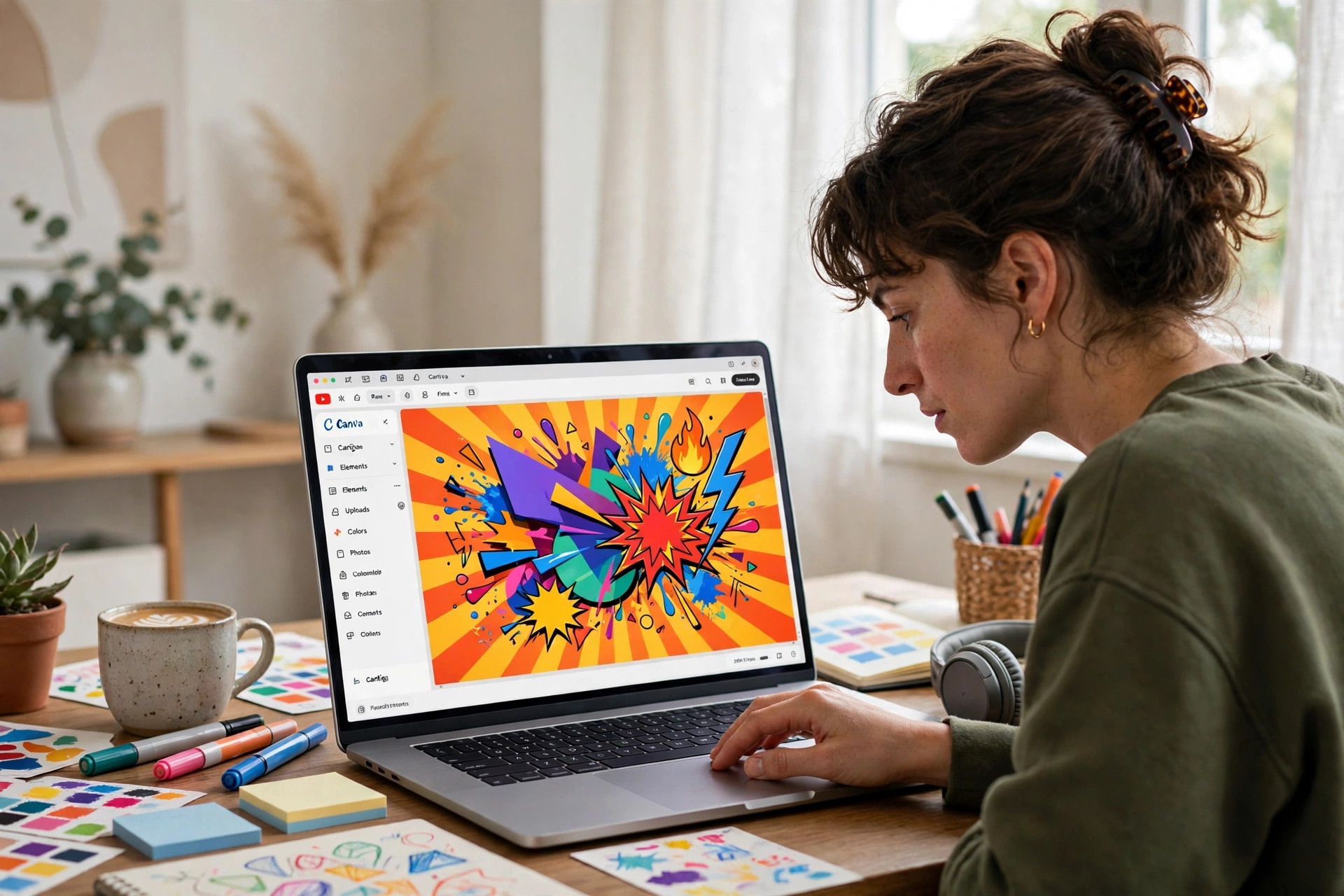
Canva is the tool most small creators reach for, and for good reason: its free plan is enough to make a professional-looking thumbnail, and its YouTube Thumbnail preset handles the sizing for you. But a preset does not guarantee a good thumbnail. The design choices — how many words, how much contrast, where the text sits — are what separate a thumbnail people can read at a glance from one that turns into a blur on a phone screen.
Start with the right size
YouTube’s current help guidance recommends a thumbnail of 3840×2160 pixels, in a 16:9 aspect ratio. The minimum accepted width is 640 pixels. A 1280×720 image is still accepted, and it is the size Canva uses for its YouTube Thumbnail preset — so if you start from that preset, your canvas is already the right shape.
Accepted formats are JPG and PNG. Older guidance also lists GIF and BMP, but JPG and PNG are the formats to use in practice: JPG for photos, PNG when you need crisp text or a transparent element. The file size limit is up to 50 MB when you upload from a computer, and 2 MB when you upload from a phone, so a typical Canva export will fit comfortably.
One important exception: Shorts thumbnails are vertical, not horizontal. A Shorts thumbnail uses a 9:16 ratio at 2160×3840 pixels. Do not reuse a horizontal thumbnail for a Short — it will be cropped awkwardly.
Before you can upload a custom thumbnail at all, your YouTube account must be verified — phone verification unlocks custom thumbnails. If the option is greyed out in YouTube Studio, that is the first thing to check.
The design rules that matter most
Good thumbnails follow a small set of rules. Breaking any of them usually shows up as fewer clicks.
Use three to five words at most, in large bold text. A thumbnail is not a second title. Pick the one idea that makes the video worth watching and say it in a handful of words. Short words in a heavy, bold font stay readable when the image shrinks; a full sentence does not.
Have one clear focal point. One face, one object, one action. When two or three things compete for attention, the eye does not know where to land and the thumbnail feels busy. If your video has a person in it, a clear facial expression is usually the strongest focal point.
Use high contrast. Bright text on a dark background, or dark text on a bright background. Low-contrast combinations such as yellow text on a white background disappear on a phone screen, and thin fonts vanish entirely. A subtle outline or shadow behind the text can help it stand out from a busy photo.
Do not repeat the video title word for word. The title sits right next to the thumbnail, so repeating it wastes the space. Use the thumbnail to add something the title does not say — the emotion, the result, the surprising part. Our guide on how to write better YouTube video titles explains how the two pieces fit together.
Keep important text clear of the edges and the bottom-right corner. YouTube overlays the video duration in the bottom-right corner, and the edges can be cropped slightly in some layouts. Keep your text and your focal point comfortably inside the frame.
Step-by-step: make the thumbnail in Canva
You do not need Canva Pro for this. The free plan includes the preset, the text tools, and the export options used below.
Step 1: Start from the YouTube Thumbnail preset
Open Canva and search for “YouTube Thumbnail.” Select the preset, and Canva opens a 1280×720 canvas in the correct 16:9 ratio. If you want the higher 3840×2160 resolution YouTube recommends, you can raise the export size in the download panel later — the design itself does not change.
Step 2: Choose or upload a background
Start with a still from your video or a photo that shows the subject clearly. A frame that already contains the emotion or the result you want to promise works better than a generic stock image. If you need to capture a still from a screen recording, our guide to the best free screen recorders covers the tools for high-quality footage. Upload the image to Canva and set it as the background, then check that the subject is large in the frame and not lost in a busy background. If the photo is cluttered, Canva’s background blur or a simple color overlay can quiet it down.
Step 3: Add one focal element
Place your main subject — usually a face or the key object — prominently, and make it big. Avoid adding a second competing element of the same size. Everything else on the canvas should support the focal point, not fight it.
Step 4: Add three to five words of text
Choose a heavy, bold font. Canva has several that work well for thumbnails, such as Anton, Archivo Black, or Montserrat ExtraBold — the exact font matters less than the weight. Keep the text short, set it large, and use a color that contrasts strongly with whatever sits behind it. If the background is busy, add a solid shape or a subtle shadow behind the text.
Step 5: Add a simple accent, then stop
One accent is enough: an arrow pointing at something important, a circle around a detail, a small contrasting shape. Accents direct the eye. Two or three of them make the thumbnail look like a collage. Once the accent is in place, ask whether removing anything would make the thumbnail clearer. If the answer is yes, remove it.
Step 6: Export at the right size
Click Share, then Download. Choose PNG if your thumbnail has sharp text or graphic elements, or JPG for a photo-heavy design. If you want the 3840×2160 size YouTube recommends, raise the size multiplier in the download panel before exporting. Check the file size stays within YouTube’s limits: up to 50 MB from a computer, 2 MB from a phone.
Step 7: Upload it in YouTube Studio
In YouTube Studio, open the video, go to the thumbnail section, and upload your image as the custom thumbnail. Preview it next to the title before you save. If you are still setting up your channel, our guide on how to start a YouTube channel from scratch covers the full publishing workflow.
The mobile-legibility check
Most YouTube views happen on phones, so a thumbnail that looks great on a laptop and unreadable on a phone is a failed thumbnail. Run this check on every design before you publish:
- Zoom out to phone size. In Canva, zoom the canvas down until it is roughly the width of a phone screen, or export the image and view it on your phone. If you cannot read the text, it is too small or too thin.
- Squint at it. Step back or squint slightly. You should still be able to make out the focal point and the main words. If the thumbnail turns into a blur of color, simplify it.
- Check the bottom-right corner. Confirm that no important text or face sits where YouTube shows the video duration.
- Read it in one second. Show it to someone for a second and ask what the video is about. If they cannot answer, the message is not clear enough.
- Compare it with the videos next to it. Open YouTube on your phone and look at your thumbnail among similar videos. Does it stand out, or does it blend into the feed?
Test thumbnails with Test & Compare
Guessing which thumbnail works better is unreliable. YouTube Studio’s Test & Compare feature lets you A/B test up to three thumbnails on the same video and picks a winner based on watch time share — the share of total watch time each version earns — rather than just clicks. That distinction matters: a thumbnail that earns clicks but loses viewers quickly is not the winner.
Use Test & Compare when you have two genuinely different ideas, not two near-identical versions. Test a face-led design against a text-led design, or a bright background against a dark one, and apply what you learn to your next video.
Common thumbnail mistakes
- Too much text. A paragraph on a thumbnail is unreadable on a phone. Three to five words is the ceiling.
- Repeating the title. The title is already visible. Use the thumbnail to add information, not duplicate it.
- Low contrast. Pale text on a pale background, or a thin font over a busy photo, disappears at small sizes.
- Text in the bottom-right corner. YouTube’s duration overlay will cover it.
- Clickbait that the video does not deliver. A misleading thumbnail can earn a click and lose the viewer in seconds, which hurts the video’s watch time.
- Skipping the phone check. Designing only on a large screen is the most common mistake. The phone check takes thirty seconds and catches most problems.
Frequently asked questions
Do I need Canva Pro to make a good YouTube thumbnail?
No. Canva’s free plan is enough for a professional thumbnail — the preset, bold fonts, shapes, and export options used in this guide are all available without a paid plan.
What size should a YouTube thumbnail be?
YouTube recommends 3840×2160 pixels at a 16:9 ratio, with a minimum width of 640 pixels. Canva’s YouTube Thumbnail preset is 1280×720, which is accepted, and you can raise the export size in the download panel for the higher resolution.
Why can’t I upload a custom thumbnail?
Custom thumbnails require a verified YouTube account. Complete the phone verification in YouTube Studio, and the option should become available.
How many thumbnails can I test at once?
YouTube Studio’s Test & Compare feature lets you test up to three thumbnails on one video and picks a winner by watch time share.
The bottom line
A good YouTube thumbnail in Canva is a 1280×720 canvas — exportable up to 3840×2160 — with one focal point, three to five words in large bold text, strong contrast, and nothing important near the edges or the bottom-right corner. Build it with the preset, check it at phone size, and use Test & Compare when you have two different ideas worth testing.



1 thought on “How to Make a YouTube Thumbnail in Canva That Stays Readable on Mobile”