Introduction
When someone searches for a plumber, a bakery, or a dentist near them, Google usually answers with a map and a short list of local businesses before it shows any websites. That list comes from Google Business Profiles — the free listing that puts your business on Google Search and Maps, with hours, phone, address, photos, services, and reviews in one place.
Setting one up costs nothing, but careless setup creates problems that take weeks to undo: duplicate listings, failed verification, an address that does not match your website. This guide covers the process in order — checking for an existing profile, creating or claiming it, verification, and first optimizations — plus what not to change while verification is pending and what to do if it fails.
First, check whether a profile already exists
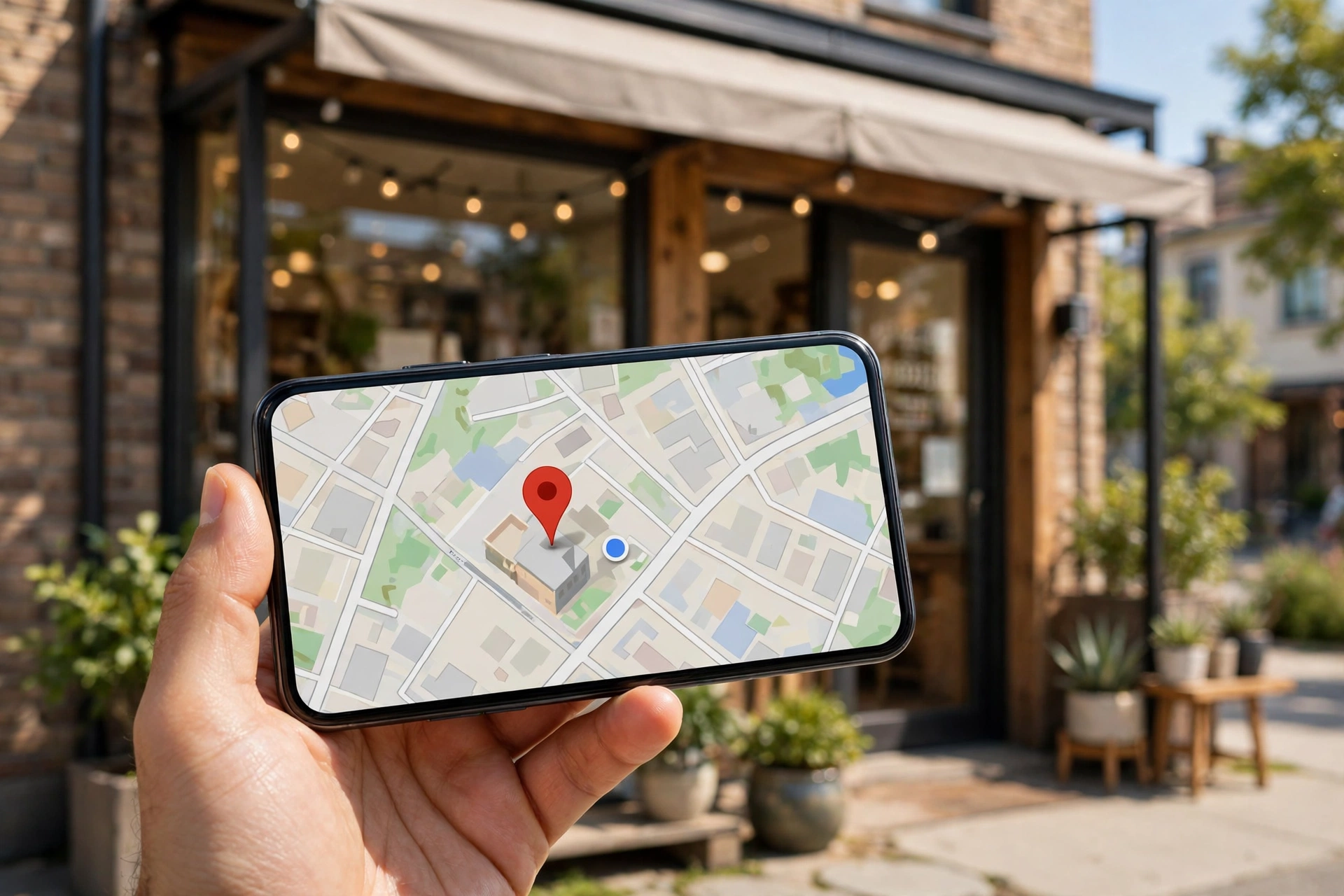
Before you create anything, search Google Maps for your business name and city. Many businesses already have a profile — Google creates listings from public information, such as business registrations and directory entries, and they sit unverified until someone claims them.
If you find one, claim it: open the listing, click Claim this business, then Manage now. A second profile would split your reviews and confuse customers.
If no profile exists, go to business.google.com/add and sign in with the Google account that belongs to the business owner — not a personal account, and not an employee’s. That owner account controls the profile, so it should be one the business keeps long term. If you need a proper business email first, our guide on how to create a professional business email address walks through it.
Check that your business is eligible
Not every business qualifies: the business must make in-person contact with customers during its stated hours — shops, restaurants, clinics, offices clients visit, and service businesses that visit customers at home.
Online-only businesses do not qualify: if your business never meets customers in person, a profile is not available to you, and creating one anyway risks suspension. Service-area businesses such as plumbers and cleaners do qualify — enter your real address for verification, but hide it publicly so only your service area shows.
Step 1: Enter the business name exactly as customers know it
Enter the business name exactly as on your shop sign, website, and business registration.
Do not add extra keywords. “Smith Plumbing” is correct; “Smith Plumbing — Best Plumber in Austin, Cheap Repairs” is not. Google treats keyword stuffing in the business name as a violation, and it is one of the most common reasons listings get flagged.
Step 2: Choose the right category
Choose a primary category describing what the business is, not everything it offers. A bakery that also sells coffee is a bakery, not a coffee shop.
The category is a main signal Google uses to decide which searches your business appears for, so pick the most specific accurate one. You can add more categories later for secondary services.
Step 3: Add the location or service area
Google will ask whether customers visit you, whether you visit customers, or both.
- Customers come to you (a shop, restaurant, clinic): enter the full street address, which will show publicly on Maps.
- You go to customers (a service-area business): enter your real address for verification, then choose to hide it and set the towns or cities you serve. Customers will see your service area, not your home address.
- Both: enter the address and define a service area.
Enter the address exactly as it appears on your website and other listings — Google compares the name, address, and phone number across the web, and mismatches make it harder for Google to trust the listing.
Step 4: Add contact details, your website, and the rest
Add the phone number customers should call — the one answered during business hours — and your website address if you have one. A website verified in Google Search Console can also help with verification. If you are still deciding on a domain, our guide to what a domain name is and how it works explains the basics.
Then complete as much of the profile as you can:
- Hours. Your regular opening hours, plus special hours for holidays. Wrong hours are worse than blank ones.
- Description. Up to 750 characters saying what the business does and who it serves. Write in plain language — a readable description builds trust, and keyword-stuffed text does not.
- Services and products. List the main services or products with short descriptions, so customers understand what you offer before they call.
- Photos. Add real photos: the storefront or signage, the interior, your team, and your products or work. A profile photo and cover photo are the minimum.
Verification: what to expect
Verification proves to Google that you are the real owner of the business at that address. Google chooses the method — it cannot be changed — and will offer one of the following:
- Video recording. A single live, continuous, unedited video of at least 30 seconds showing the location, the signage, and proof that you run the business — for example, walking from the street sign into the shop and showing branded materials or equipment. One take, start to finish: no editing, no stitched clips, no restarts.
- Live video call. A video call with a Google support representative during business hours, showing the same proof in real time.
- Phone or text code. Google calls or texts a code to the business phone number — automated systems cannot receive it, so the number must reach a person or a voicemail you can check.
- Email code. A code sent to the business email.
- Mailed postcard. A postcard with a 5-digit code, sent to the business address. It usually arrives within 14 days, and the code expires after 30 days.
- Instant verification. If your website is already verified in Google Search Console under the same account, Google may verify the profile instantly, with no code at all.
After you submit, Google’s review can take up to 5 business days, and the profile may not appear in search until it is complete.
While verification is pending, do not touch the basics
While verification is pending, do not change the business name, address, or category — edits can trigger re-verification. Do not request a second postcard code, which cancels the first, and do not create a second profile. You can still add photos, services, and a description while you wait.
If verification fails
A failed verification is usually fixable. Work through these steps in order:
- Check the basics. Is the business name exactly as it appears on your signage and website? Is the address complete and correctly spelled? Small mismatches are a common cause of failure.
- Try the method Google offers again. If a video was rejected, re-record it in one continuous take with the signage clearly visible. If a postcard never arrived, wait the full 14 days before requesting a replacement.
- Contact Google Business Profile support. From your profile dashboard, ask for help with evidence ready: photos of signage, a business license, or a utility bill at the address.
- Do not keep resubmitting the same failed verification. Find out what Google needs, fix it, then try again.
Post-verification checklist
Once the profile is verified, run through this checklist:
- Hours are accurate, including holiday hours and any days you are closed
- Phone number and website link tested — call the number and confirm the link points to the right page
- Primary category is correct, with additional categories covering your main secondary services
- Description complete (up to 750 characters), in plain language
- Services and products listed
- Photos added — storefront, interior, team, products
- Attributes set — access, parking, payment methods
- Service area defined, address hidden if chosen
- Name, address, and phone match your website exactly
Reviews: what you can and cannot do
You can ask customers for genuine reviews — a simple request after a good experience is fine. You cannot offer anything in return: no discount, free item, or prize-draw entry. Google prohibits incentivised reviews and can remove them and penalise the profile, and you cannot review your own business or ask others to post fake ones. Note that Google ended its built-in Business Profile chat feature in 2024, so keep your phone number and website easy to find instead.
Frequently asked questions
Is a Google Business Profile free?
Yes. Creating and managing a Google Business Profile costs nothing; Google may offer paid advertising separately, but the profile itself is free.
How long does verification take?
A phone, text, or email code is instant. A mailed postcard usually arrives within 14 days, and the code expires after 30 days. Google’s review can then take up to 5 business days.
The bottom line
Creating a Google Business Profile is a short process with a long payoff: claim an existing listing if there is one, enter the name exactly as customers know it, choose an honest primary category, add accurate hours and contact details, and let Google choose the verification method. Then leave the name, address, and category alone until verification is confirmed.