Introduction
You can be the right person for a job and still never get a call — not because a recruiter rejected you, but because the software that received your application could not read your resume properly. Most large and mid-size US employers use an applicant tracking system (ATS) to collect, organize, and search applications. The system pulls the text out of your file and sorts it into fields: name, contact details, work history, education, skills. If your layout hides information inside a table, a graphic, or a text box, that information may be dropped or filed in the wrong place — and nobody tells you it happened.
An ATS-friendly resume is not a different kind of resume. It is the same resume — your real experience, written clearly — in a format a parser can read in order, top to bottom, and a human can scan in seconds. This guide covers the format rules university career centers teach, a keyword-mapping worksheet that tailors your resume to each job without stuffing, and a plain-text parse check you can run in two minutes before you hit submit.
What an ATS actually does with your resume
An ATS is a database, not a judge. When you upload a resume, the system extracts the raw text and tries to match it against the requirements the hiring manager set for the role: job titles, skills, software, certifications, and qualifications from the job description. Recruiters then search and filter that structured data. A resume that parses cleanly shows up in those searches with the right details in the right fields. A resume that does not parse cleanly may show up with missing dates, a jumbled work history, or a blank skills field.
Two things follow. First, formatting is not cosmetic: it determines whether your content survives the extraction step at all. Second, keywords matter because they are how the system finds you — but only when they appear in real context, in bullet points describing work you actually did. A list of terms pasted at the bottom of the page may match a search, but it reads as manipulation to the human who eventually opens the file, and career-center guidance from schools such as MCPHS warns that keyword stuffing can get an application flagged as spam.
Use a single-column layout with standard headings
The single most important formatting decision is the layout. Use one column, left-aligned, reading straight down the page. Parsers read text left to right and top to bottom; a two-column resume with a sidebar forces the software to guess how the columns relate, and it often guesses wrong — reading across both columns and scrambling job titles together with skill names.
Follow the same principle for everything else on the page:
| Element | ATS-friendly choice | Avoid |
|---|---|---|
| Layout | Single column, top to bottom | Two or three columns, sidebars |
| Headings | Summary, Work Experience, Education, Skills | Creative headings like “My Journey” |
| Fonts | Arial, Calibri, Times New Roman, Georgia, Helvetica, Verdana, 10–12 pt | Decorative or script fonts |
| Dates | Inline with each job, e.g. “Marketing Assistant — Brightline Media — Austin, TX — June 2024 – Present” | Dates in a separate right-hand column |
| Text | Real, selectable text throughout | Logos, photos, icons, skill bars, star ratings |
| Structure | Plain lines and bullet points | Tables, text boxes, headers, footers, graphics |
Put your contact information in the body of the document, not in the Word header or footer — many systems ignore header and footer content entirely, which can mean your phone number and email never make it into the database. Use standard section headings in full words, spell out degrees and certifications, and give both the full term and the abbreviation the first time you use one — “Certified Nursing Assistant (CNA)” rather than just “CNA” — so the system finds it whichever form the recruiter searches for. Keep margins at half an inch or wider, skip page numbers inside the body, and avoid special characters and underlining, which can interfere with how lowercase letters are read.
Start from a blank single-column document rather than trying to repair a fancy template. Design templates built in Canva or downloaded as “modern” layouts often hide invisible tables and text boxes that look clean on screen and break silently in the parser.
DOCX or PDF: which file should you send?
When the job posting names a format, follow it — that instruction overrides everything below. When it does not, DOCX is the safer default. It is the native format for most ATS parsers, and career-center guidance consistently describes it as the most reliably parsed option; older enterprise systems in particular handle DOCX more predictably than PDF.
A text-based PDF exported from Word or Google Docs will parse on most modern systems, so a clean PDF is a reasonable choice on a newer job board. But never submit a scanned or image-based PDF — a file that is really a picture of your resume contains no text for the parser to extract — and never submit a password-protected file or a .pages file. Before you send a PDF, check that you can select and copy the text in it; if you cannot highlight the words, the ATS cannot read them either. Name the file professionally: “Firstname-Lastname-Resume.docx” is easier to find and looks better than “final_FINAL_v7.pdf.”
Tailor keywords with a mapping worksheet, not guesswork
Tailoring does not mean rewriting your whole resume for every application. It means adjusting the language of the bullets you already have so the system — and the recruiter — can see the match with this specific job. The method below takes about fifteen minutes per posting and keeps you honest: every keyword you add must trace back to something you actually did.
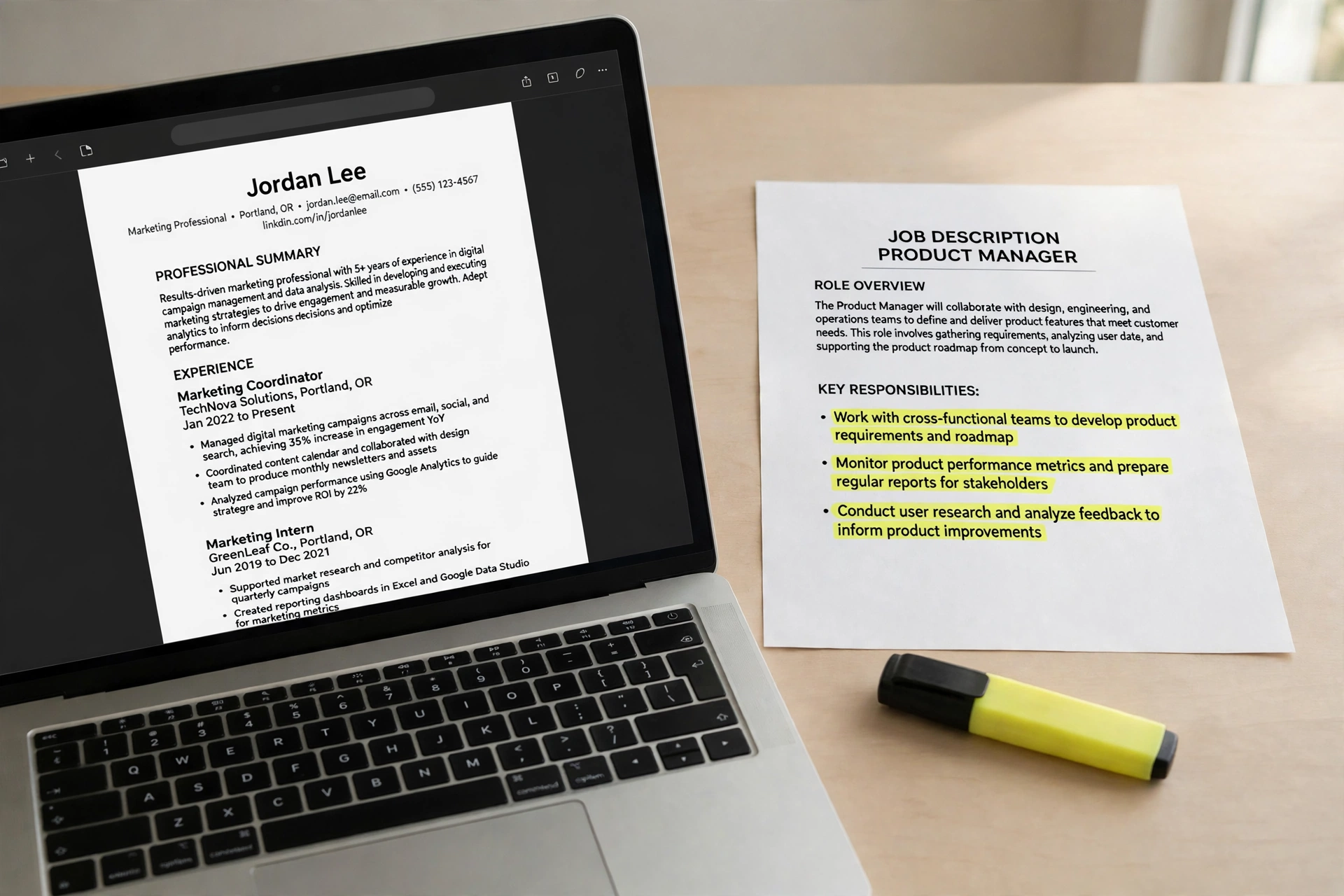
Step 1: Pull the requirements out of the job description. Highlight the hard requirements — job title, technical skills, software, tools, certifications — and the transferable skills, such as leadership, communication, and coordination. Ignore generic filler such as “fast-paced environment” and focus on terms that describe actual work.
Step 2: Build a three-column worksheet.
| Requirement from the posting | Your matching experience | Where it goes on the resume |
|---|---|---|
| Data entry and record-keeping | Updated intake spreadsheet for 55 families per volunteer shift | Volunteer Experience bullet |
| Customer communication | Answered questions at community events, 20+ visitors per day | Summary + Skills |
| Microsoft Excel | Built tracking sheets and pivot tables in a class project | Skills + project bullet |
| Scheduling and coordination | Coordinated a four-person team schedule for a final presentation | Experience bullet |
Step 3: Write the keywords into context. Put each keyword inside a bullet that describes the work, with an action verb and a result where you have one. “Managed a team of five executive board members” proves leadership; the word “leadership” alone, sitting in a skills list, does not. Include both the specific term and the general one where both apply — for example, the specific skill “coordinated schedules” and the broader role term “project coordinator” — because recruiters search for both. If the posting uses a phrase, use that phrase: if it asks for “leadership experience,” write “leadership experience” rather than expecting the system to infer it from a list of roles you led.
Step 4: Check for honesty and readability. Read the resume aloud as a human would. If a sentence only exists to hold a keyword, rewrite it or cut it. Never claim a skill, tool, or certification you do not have — the keyword may get you past a filter, but the interview will expose it. And never hide keywords in white text, a tiny font, or an invisible section. That is keyword stuffing, it is easy to detect, and it can get your application flagged.
If you use an AI tool to brainstorm stronger bullet wording, keep the facts yours. Our guide to writing better ChatGPT prompts shows how to ask for tighter phrasing without inventing achievements, and our ChatGPT-for-work guide has prompt patterns for rewriting work descriptions that transfer directly to resume bullets.
The plain-text parse check: two minutes before you apply
This is the closest you can get to seeing your resume the way the ATS sees it, and it needs no special software.
- Select all the text in your resume and copy it. In Word or Google Docs, use Ctrl+A (Cmd+A on a Mac) and copy.
- Paste it into a plain-text editor — Notepad on Windows, TextEdit in plain-text mode on a Mac — with no formatting at all.
- Read the result top to bottom. Check that your name, phone number, and email appear first and in full. Check that every section heading survived, every job title sits next to the right company and dates, and your bullets appear in the right order under the right job.
- Fix what the test exposes. If a date appears next to the wrong job, move dates inline with the job line. If a section is missing, it was probably inside a header, footer, table, or text box — move it into the body. If your skills section reads as one garbled line, split it into plain lines or a simple comma-separated list.
Run this check on the exact file you plan to upload, in the exact format you plan to send. A DOCX and a PDF of the same resume can parse differently, so test the file itself, not a sibling copy.
Final checklist before you submit
- ☐ One column, left-aligned, standard font, 10–12 pt, margins of at least half an inch
- ☐ Contact details in the body of the document, not the header or footer
- ☐ Standard headings: Summary, Work Experience, Education, Skills
- ☐ No tables, columns, text boxes, graphics, icons, photos, or skill bars
- ☐ Dates inline with each job, months and years included
- ☐ Full terms with abbreviations on first use (e.g. Certified Nursing Assistant (CNA))
- ☐ Keywords from the job description woven into achievement bullets, not pasted as a list
- ☐ No claimed skill, tool, or certification you do not actually have
- ☐ File named “Firstname-Lastname-Resume.docx” (or .pdf if the posting asks for it)
- ☐ Plain-text parse check passed on the exact file being uploaded
- ☐ One page for most early-career roles; two pages only if the experience genuinely fills them
FAQ
Do I need a different resume for every job?
Not a different resume — a tailored one. Keep one master resume with everything, then adjust the summary, the bullet wording, and the skills emphasis for each posting using the keyword worksheet. The structure and the facts stay the same; the language matches the job.
Is a PDF or a DOCX better for ATS?
DOCX is the safer default when the posting does not specify, because it is the native format for most parsers. A clean, text-based PDF works on most modern systems. Follow the posting’s instruction when it names a format, and never send a scanned or image-based PDF.
Can I use a resume template?
Only a plain, single-column one built in Word or Google Docs. Avoid templates with sidebars, columns, graphics, or decorative elements, and avoid design-tool exports that hide tables and text boxes. If in doubt, start from a blank document.
What if I have no work experience?
Use the same format and fill the Experience section with what you do have: class projects, volunteer work, part-time jobs, campus roles, and freelance or family-business work, each written as achievement bullets. The parser does not care whether the heading says “Work Experience” or “Relevant Experience” — it cares that the headings are standard and the text is readable.
The bottom line
An ATS-friendly resume is a plain, honest document: one column, standard headings, real text, dates inline, and keywords from the job description written into bullets about work you actually did. Build it from a blank page, send it as a DOCX unless the posting says otherwise, and run the plain-text parse check on the exact file before every application. Two minutes of checking is the difference between a resume a recruiter can find and one the software quietly misfiled.