Introduction
A slow PC, a browser homepage you did not set, pop-ups demanding you call a number, or files you can no longer open — any of these can mean malware. But “malware” is not one problem, and there is no single cleanup routine that fits every case. Ordinary adware, a password-stealing trojan, and ransomware are different emergencies with different first moves, and treating them the same way is how people lose money or data.
This guide is built around an escalation matrix: first figure out which kind of infection you are dealing with, then follow the matching path. The steps follow Microsoft’s Windows Security guidance and the US Federal Trade Commission’s (FTC) advice on hacked computers, checked against current documentation in November 2026. Everything here uses tools already built into Windows.
Step 0: Decide which emergency you have
Before you click anything, spend sixty seconds classifying the problem. It changes everything that follows.
| What you are seeing | Likely situation | First move |
|---|---|---|
| Extra toolbars, new homepage, pop-up ads, a browser redirecting searches | Adware or a browser hijacker | Annoying, but usually low urgency — proceed with the standard cleanup below |
| Antivirus turned off by itself, strange programs you never installed, the mouse moving on its own, unknown remote-access software | Possible remote-access trojan or info-stealer | Disconnect from the internet now, do not type any passwords on this PC, treat every password as potentially compromised |
| Files renamed with a strange extension and unreadable, a ransom note on screen, or a demand for payment to unlock files | Ransomware | Disconnect immediately, do not pay, do not restart yet if files are still being encrypted — seek professional help or report it (see below) |
| A pop-up or phone call claiming to be Microsoft, with a phone number to call | Tech support scam | Do not call, do not pay, do not grant remote access — Microsoft’s real error messages never include a phone number |
Step 1: Isolate the PC and stop typing passwords
The FTC’s first instruction for a hijacked computer is simple: stop shopping, banking, and entering passwords online until the computer is cleaned. Malware that logs keystrokes or steals browser sessions can capture anything you type, including the new passwords you set to fix the problem.
- Disconnect from the network. Unplug the Ethernet cable or turn off Wi-Fi. This stops the malware from sending stolen data out and stops ransomware from reaching shared drives or other computers on your network.
- Do not sign in to anything on this PC. No email, no banking, no social media. Use your phone or a second computer you trust for anything that needs a password.
- Do not call any phone number shown in a pop-up. Real security warnings never ask you to phone a number. Report the scam at microsoft.com/reportascam or ReportFraud.ftc.gov instead.
Step 2: Update Windows and Defender before you scan
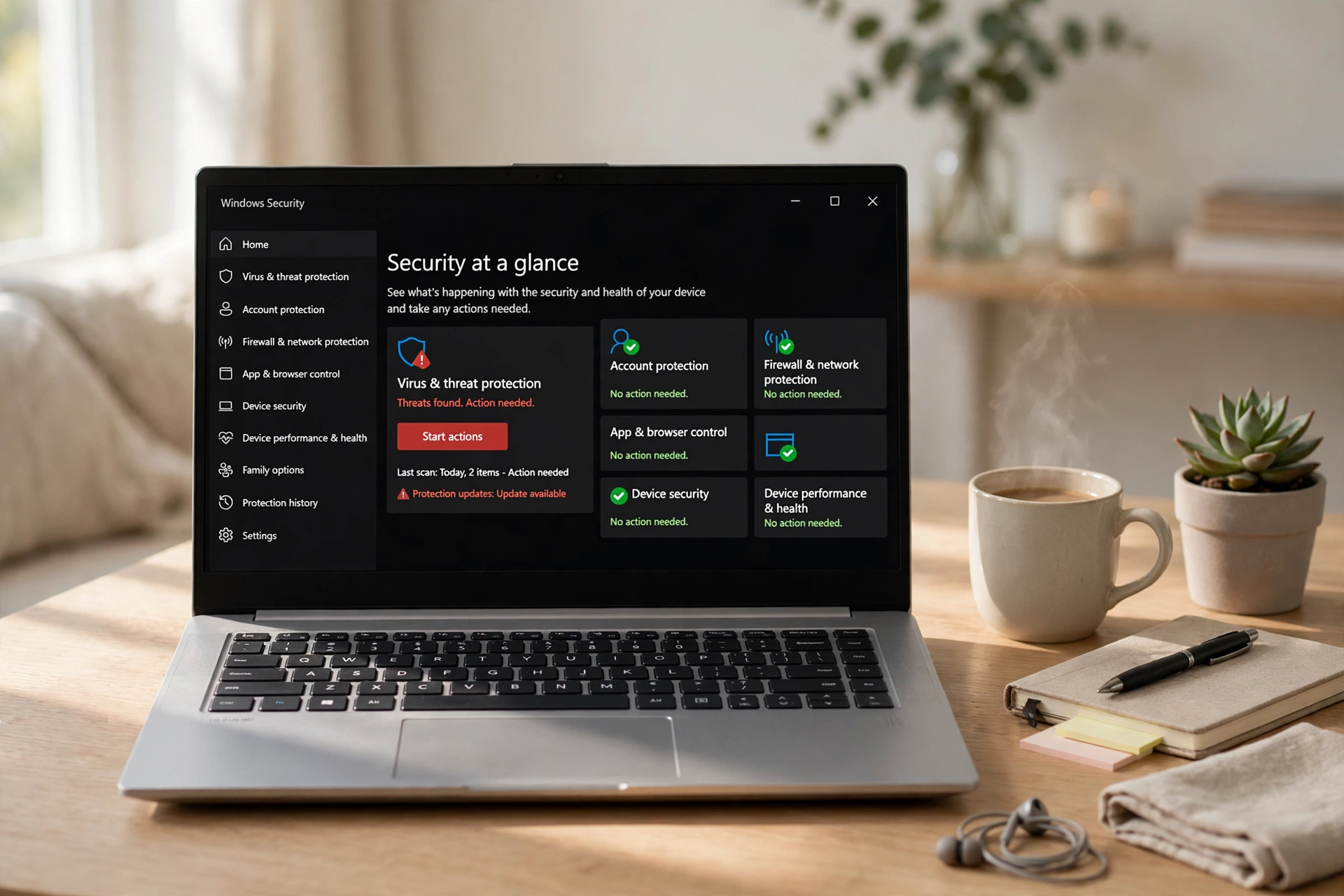
Malware often survives because the protection on the PC is out of date. Updating first means the scan recognizes the newest threats. Open Settings > Windows Update and install any pending updates, then open Windows Security, go to Virus & threat protection > Protection updates > Check for updates, and confirm Real-time protection and Cloud-delivered protection are turned on under Manage settings.
If Windows Security will not open, or Defender appears switched off and will not turn back on, that itself is a warning sign: some malware disables security tools deliberately. Skip ahead to the offline scan in step 4 — it runs outside Windows, where the malware cannot interfere.
Step 3: Run a full scan with Microsoft Defender
Windows Security is built into Windows 10 and 11 and turned on by default, so for most people it is the right first scanner. A quick scan checks the places malware most commonly hides; a full scan checks every file and program on your drives and takes considerably longer — often one to three hours.
- In Windows Security, select Virus & threat protection.
- Under Current threats, select Scan options.
- Choose Full scan and select Scan now. Let it finish — do not stop it halfway.
- When it finishes, open Protection history on the same page. For each threat it found, select it and choose an action: Quarantine when you are unsure (it isolates the file safely), Remove to delete a quarantined threat permanently. Only choose Restore for a file you are certain is safe.
If the scan finds nothing but the symptoms persist, do not assume the PC is clean. Some malware hides while Windows is running, which is exactly what the next step is for.
Step 4: Run the Microsoft Defender offline scan for stubborn infections
Some persistent malware locks its own files or hides behind active processes once Windows loads. The Microsoft Defender offline scan runs from the Windows Recovery Environment before Windows boots, so the malware cannot hide from it. Microsoft’s documentation says the scan takes about 15 minutes and the PC restarts automatically when it finishes. To run it, save your work and close your programs, then go to Windows Security > Virus & threat protection > Scan options, select Microsoft Defender Antivirus (offline scan), and click Scan now. Afterwards, open Windows Security > Protection history to see what it caught.
Two caveats from Microsoft’s documentation: the offline scan requires 64-bit Windows 11 (or Windows 10 version 1607 or newer) and does not run on ARM-based Windows 11 devices, and if BitLocker protects your system drive, suspend BitLocker protection first or have your recovery key ready. If the scan triggers a blue screen, restart and try once more; if it happens again, contact Microsoft Support.
Step 5: Remove the persistence points — apps, startup items, and browser extensions
A scan removes the malicious files, but malware often leaves behind the mechanisms that let it return: an unwanted program, a startup entry, or a browser extension. Skip this step and the infection can come straight back after the next restart.
Uninstall programs you do not recognize. Go to Settings > Apps > Installed apps and sort by install date. Anything installed around the time the problems started, with a name you do not recognize, should be uninstalled. When in doubt, search the program name on your phone before removing it.
Check what starts with Windows. Open Task Manager, go to the Startup apps tab, and disable anything suspicious or unfamiliar. Legitimate entries usually carry a recognizable publisher name; blank or oddly named entries deserve a closer look.
Clean up your browser. In Edge or Chrome, open the Extensions page from the browser menu and remove any extension you did not deliberately install — especially ones that appeared recently or have vague names. Then reset the homepage and default search engine to what you chose. If the browser still misbehaves, reset the browser settings to their defaults — both Edge and Chrome offer a one-click reset in Settings.
Step 6: Change your passwords — from a clean device
This is the step people most often skip, and the one that matters most after a serious infection. A clean scan does not prove that previously exposed credentials are safe: info-stealing malware can copy saved passwords and browser sessions before it is ever detected, and changing a password on the infected PC risks handing the new one to the same malware.
- Use a different device you trust — your phone or another computer — for every password change.
- Start with your primary email account. Email controls password resets for almost everything else, so it goes first.
- Then banking and payment accounts, followed by cloud storage, social media, work accounts, and anything that shared the same password.
- Use a unique password for each account and turn on two-factor authentication wherever it is offered. Our guide to checking whether your email was in a data breach explains how to find out if an address has already appeared in a known breach — worth checking while you are doing this reset.
- Review account activity. Check recent sign-ins and connected devices in your email and banking accounts, and sign out any session you do not recognize.
Step 7: When a clean reset or professional help is safer
Sometimes scanning is not enough. Consider a clean reset of Windows — or professional help — when the same threat returns after a full scan and an offline scan, your security tools were disabled or tampered with, unknown administrator accounts or remote-access tools appeared, you suspect an info-stealer ran, or ransomware encrypted your files.
Resetting Windows: Go to Settings > System > Recovery > Reset PC. You can choose to keep your personal files or remove everything; for a serious infection, removing everything gives the cleanest result. Back up important files first — to an external drive or cloud storage that was not connected during the infection — and reinstall applications from their official sources afterwards. A reset restores trust in the system itself, but it does not repair compromised accounts, so step 6 still applies.
Ransomware specifically: do not pay the ransom — payment rarely guarantees file recovery. Disconnect the PC, report the incident to the FBI’s Internet Crime Complaint Center at ic3.gov, and check No More Ransom (nomoreransom.org) for free decryption tools. If the encrypted files are backed up somewhere safe, restoring from backup after a reset is usually the best outcome.
Professional help: use the PC manufacturer’s support, a reputable local repair shop you chose yourself, or someone knowledgeable you actually know. Never use a “support” number that appeared in a pop-up, an email, or an unsolicited call — that is how the scam starts. A legitimate technician will never ask you to pay with gift cards or wire transfers.
Staying clean afterwards
- Keep Windows and your browser set to update automatically, and keep real-time protection on.
- Download software only from the vendor’s official site or the Microsoft Store — “free” download sites are a common infection source.
- Do not run commands a website or pop-up tells you to paste into PowerShell or Terminal. The FTC warned in 2026 about fake CAPTCHA screens (the “ClickFix” trick) that do exactly this. A real verification step never asks you to run commands on your computer.
- Treat unexpected attachments and links with suspicion, even from people you know — compromised accounts send malware to their own contacts.
FAQ
Can Windows Security remove all malware?
For most common infections, yes — a full scan plus the offline scan handles adware, trojans, and browser hijackers well. It cannot undo stolen passwords or decrypt ransomware files, and deeply embedded rootkits may still need a clean reset.
How long does a full Defender scan take?
Typically one to three hours, depending on how much data is on the drive. The offline scan is much faster — about 15 minutes — because it runs a targeted scan from outside Windows.
Do I need to buy antivirus software?
For most home users, no. Microsoft Defender Antivirus is built in and updated through Windows Update. A second-opinion scanner such as Microsoft’s free Safety Scanner can help with a stubborn machine — but avoid downloading “security software” advertised in pop-ups, since scammers disguise malware as exactly that.
Should I change my passwords if the scan found nothing?
If the symptoms were only adware, probably not. If there was any sign of remote access, disabled security tools, or a possible info-stealer, yes — change passwords from a clean device, starting with email and banking.
The bottom line
Match the response to the infection: adware gets a scan and a browser cleanup, suspected credential theft gets isolation plus password changes from a clean device, and ransomware gets disconnection, reporting, and usually a reset. Update first, run a full Defender scan, follow it with the offline scan if anything persists, and never type a new password into a machine you do not yet trust.