Introduction
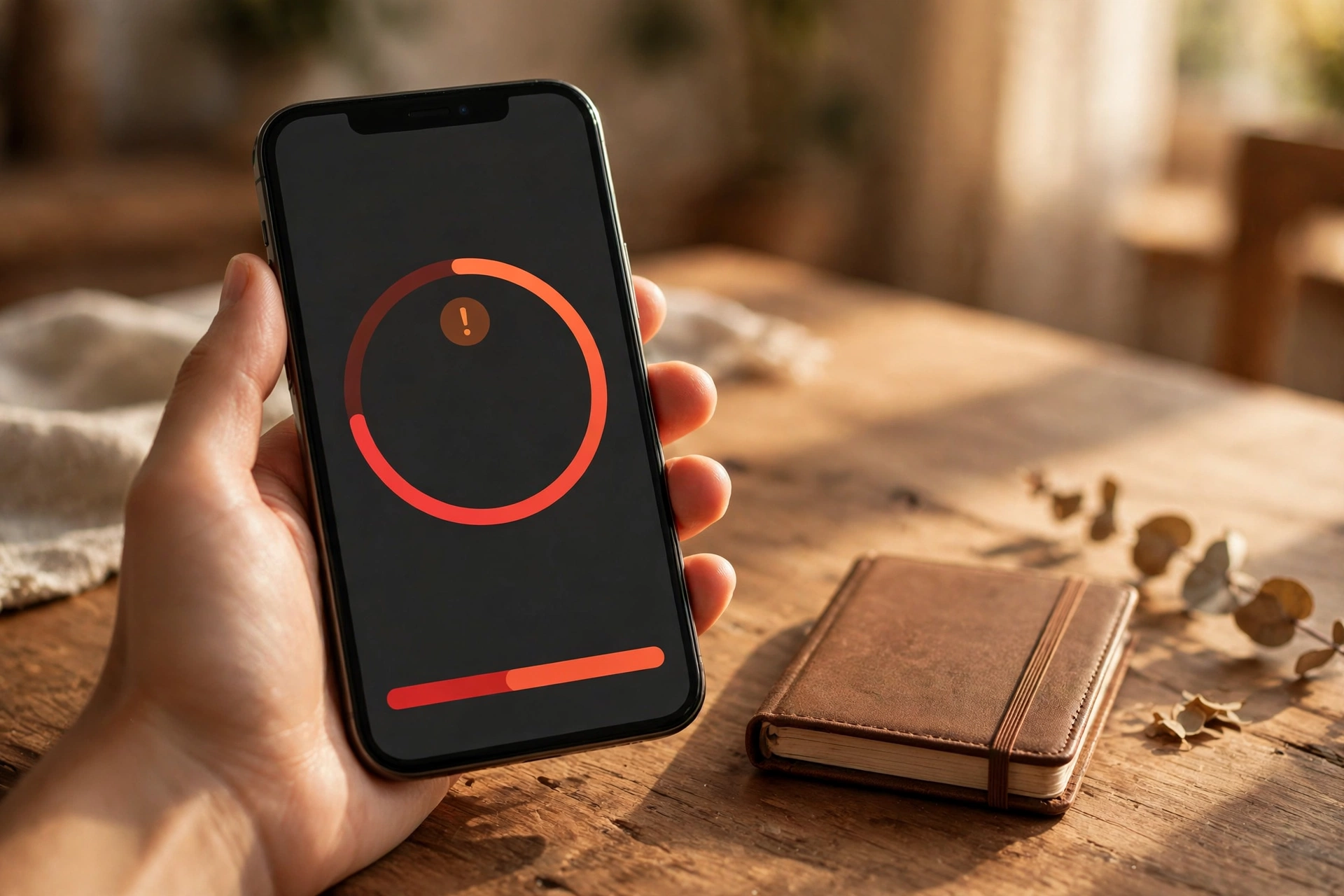
An iPhone that says “Storage Almost Full” does not just stop taking photos. It stops installing updates and downloading apps, and can start behaving strangely — apps crashing, messages failing to send, the camera refusing to record. The panic response is to delete photos, which is exactly the wrong first move: your photos are the hardest thing to replace, and often not even the biggest thing on the phone. Apple gives you several ways to free space without deleting a single memory. The trick is the order: check what is using the space, verify your photo backup before you touch anything, then work through the safe fixes — optimized storage, offloading unused apps, large attachments, and caches.
Step 1: Check what is using your storage
Everything starts on one screen: Settings > General > iPhone Storage. At the top are used and free space, then a color-coded bar by category — Photos, Apps, Messages, Media, iOS, and System Data — with Apple’s recommendations and a list of apps sorted by size below.
The biggest category decides your next move: Photos points to the Photos and iCloud settings; Apps to offloading and in-app downloads; Messages to large attachments and old conversations; System Data to caches and temporary files. Apple may also show recommendations at the top, such as Offload Unused Apps or Review Large Attachments — tap Show All to see them all, and tap any one to review what it would do before enabling it. If your iPhone does not show a recommendation you expected, that is normal: Apple says the phone offers recommendations when they apply, not always.
Local storage vs iCloud storage vs app data
This is the single most confusing part of iPhone storage, and getting it wrong is how people lose photos.
| Kind of storage | What it is | What fills it |
|---|---|---|
| Local storage | Your iPhone’s physical capacity (128 GB, 256 GB, and so on) | Apps, photos, messages, iOS itself |
| iCloud storage | Space on Apple’s servers; every account gets 5 GB free | iCloud Photos, backups, iCloud Drive |
| App data | Content an app stores on your phone | WhatsApp chats, Spotify downloads, Netflix shows |
The key point: buying more iCloud storage does not add space to your iPhone. A bigger plan only helps if you turn on Optimize iPhone Storage, which keeps small versions of your photos on the phone while the full-resolution originals live in iCloud. Without that setting, an iCloud upgrade changes nothing on the phone. And deleting an app removes its data, while offloading an app keeps it.
Step 2: Verify your photo backup before deleting anything
Before you delete, move, or optimize a single photo, confirm your photos are safely backed up. This is the one step you must not skip.
If you use iCloud Photos, open Settings, tap your name, tap iCloud, then tap Photos and check Sync this device is on. Then open the Photos app and scroll to the bottom of your library: it should say your library is up to date or show how many items are still syncing. If items are still uploading, connect to Wi-Fi and wait — deleting while iCloud Photos is syncing can delete a photo from every device, because iCloud Photos keeps your library the same everywhere. If you use Google Photos or another backup service, open that app and check its backup status reads complete before you touch anything.
One more warning: deleting a photo does not free space immediately. Deleted photos sit in the Recently Deleted album for up to 30 days and still count against your storage. If you delete photos later, open Photos > Albums > Recently Deleted and delete them permanently — but only after you are certain the backup is good.
Step 3: Turn on Optimize iPhone Storage
This is the most effective fix when photos are the biggest category, and it deletes nothing. Optimize iPhone Storage keeps space-saving versions of your photos and videos on your iPhone and stores the full-resolution originals in iCloud; when you open a photo, the full version downloads.
To turn it on, open Settings, tap your name, tap iCloud, then tap Photos, make sure Sync this device is on, and choose Optimize iPhone Storage (on some iOS versions this option appears directly on the Photos screen). Two conditions matter. First, your iCloud plan must be large enough to hold your whole library — the free 5 GB plan almost certainly is not, so most people need a paid iCloud+ plan. Second, optimization happens gradually: the phone frees space as it needs it, so give it a day or two and check again. If you do not want iCloud Photos, back up to a computer or an external drive instead, then delete the local copies you have safely copied. Never delete the only copy of a photo.
Step 4: Offload unused apps — the safest big win
Offloading is Apple’s middle ground between keeping an app and deleting it: iOS removes the app itself but keeps its documents and data. Reinstall later and everything is as you left it. Deleting an app, by contrast, removes the app and its data together.
To offload one app, go to Settings > General > iPhone Storage, tap the app, and tap Offload App. To let the iPhone do it automatically when space runs low, go to Settings > Apps > App Store and turn on Offload Unused Apps, or enable it from the recommendation at the top of the iPhone Storage screen. Start with the biggest apps — games, social apps, and streaming apps are often several gigabytes each. Offloading one or two can free more space than deleting a hundred photos.
One exception: offloading does not touch the Documents & Data inside an app. If an app’s data itself is huge — a streaming app full of downloaded shows, for example — offloading will not help much. For those, delete the downloads inside the app, or delete and reinstall it.
Step 5: Clear Safari and app caches safely
iOS does not have a universal “clear cache” button the way Android does, so you handle caches app by app.
Safari: Open Settings > Apps > Safari (on older iOS versions, Settings > Safari), scroll down, and tap Clear History and Website Data. This removes cached pages, cookies, and browsing history; you will be signed out of most websites, but bookmarks and saved passwords stay. To remove website data without clearing history, go to Settings > Apps > Safari > Advanced > Website Data and tap Remove All Website Data.
Other apps: Many apps have their own cache controls — look for “Clear cache” or “Storage usage” in apps like Chrome, TikTok, or Telegram. For apps without one, the only way to clear a bloated cache is to delete the app and reinstall it. Before you do that, check the app’s important data is backed up or synced to its own cloud account, because deleting removes the app’s local data.
Do not install “cleaner” apps. iOS walls off every app from the others and from the system, so a third-party cleaner cannot reach the caches it claims to clean; Apple notes iOS removes cached and temporary files on its own when the device needs space.
Step 6: Tackle System Data and large attachments
System Data — called “Other” on older iOS versions — is the catch-all category for caches, logs, fonts, Siri voices, and temporary files the system is using. Apple describes it as “caches, logs, and other resources currently in use by the system.” You cannot delete it directly or see what is inside it.
Some is normal: roughly 5 to 15 GB is common on a modern iPhone, and iOS itself needs several gigabytes just to run. If yours is much larger, clear Safari data as in Step 5, restart your iPhone to flush temporary files, and install the latest iOS update, which can clean up leftovers from previous updates. Delete and reinstall your heaviest streaming and social apps — their caches are the usual hidden culprit. If System Data is still well above 20 to 30 GB, the thorough fix is a backup and restore: back up to iCloud or a computer, erase the iPhone, and restore from the backup. That rebuilds the file system from scratch and usually brings System Data back to normal. It is a last resort — only do it with a backup you have verified.
Messages is a quiet storage hog too: every photo, video, and GIF in a conversation is stored on your phone, and years of group chats add up. In Settings > General > iPhone Storage, tap Messages and review the largest attachments under Top Conversations, Photos, Videos, and GIFs and Stickers. To stop it coming back, limit how long messages are kept: Settings > Apps > Messages > Keep Messages, change Forever to 30 Days or 1 Year. Deleting an attachment removes it from that conversation on your phone, so save photos you want to keep to the Photos app first.
Step 7: Delete downloads and offline content inside apps
A lot of storage hides inside apps, not in the storage categories. Remove finished downloads in Netflix, Apple TV, Spotify, and YouTube, finished books and episodes in Apple Books and Podcasts, and old recordings in Voice Memos (deleted voice memos sit in Recently Deleted for 30 days). Also check the Files app: tap Browse > On My iPhone and delete files downloaded from Safari or email that you no longer need.
What to do if iCloud itself is full
Sometimes the phone is not the problem — iCloud is. If you see “iCloud Storage Full,” open Settings > [your name] > iCloud and look at the breakdown: usually a large photo library, old device backups, or iCloud Drive files.
Two fixes, in order. First, delete old backups from phones you no longer own (Settings > [your name] > iCloud > Manage Account Storage > Backups). Second, upgrade your iCloud+ plan if your library needs more room than the free 5 GB. This buys cloud space, not phone space — it only helps the phone if Optimize iPhone Storage is on. Be careful while iCloud is full: new photos may stop syncing, and Apple notes photos deleted while iCloud is over its limit can be removed at once rather than sitting in Recently Deleted. Fix iCloud first, then clean the phone.
If you have an Android phone in the household too, the logic is the same — diagnose first, back up photos, then clear cache and downloads — and our guide on how to free up storage on an Android phone walks through the Android menus.
Keep it from filling up again
A one-time cleanup buys you space. Three settings keep it free: Optimize iPhone Storage on, so photos shrink automatically; Offload Unused Apps on, so forgotten apps remove themselves when space runs low; and Keep Messages set to 30 days or 1 year, so old attachments do not pile up. Keep a few gigabytes free at all times — iOS needs working room for updates and temporary files, and a completely full phone can slow down or fail to update. If your iPhone keeps filling up after a thorough cleanup, the storage size itself may be the limit: your options are a phone with more storage next time, or keeping more of your library in iCloud with Optimize turned on. If the phone is also draining fast while it is full, check why your phone battery drains so fast once the storage is under control.
FAQ
How do I fix iPhone storage full without deleting photos?
Turn on Optimize iPhone Storage under Settings > [your name] > iCloud > Photos: it keeps small versions of your photos on the phone and the full-resolution originals in iCloud, so nothing is deleted. Then offload unused apps, delete large message attachments, and clear Safari data — those three steps usually free several gigabytes without touching your photos.
What is the difference between iPhone storage and iCloud storage?
iPhone storage is your phone’s physical capacity (128 GB, 256 GB, and so on). iCloud storage is space on Apple’s servers — every account gets 5 GB free — for iCloud Photos, backups, and iCloud Drive. Buying more iCloud storage does not add space to your phone; it only helps if you turn on Optimize iPhone Storage.
Is it safe to offload apps on iPhone?
Yes. Offloading removes the app but keeps its documents and data, so reinstalling restores everything as you left it — unlike deleting, which removes the app and its data together. Turn on Offload Unused Apps under Settings > Apps > App Store to let the iPhone do it automatically.
Why is my iPhone storage full after I deleted photos?
Deleted photos stay in the Recently Deleted album for up to 30 days and still use space until you empty it. The photos may also not have been the problem — check Settings > General > iPhone Storage again, because apps, messages, or System Data may be the culprit. And if iCloud Photos is on, deleting a photo removes it from every device, so check your backup before you delete more.
Can I delete System Data on my iPhone?
Not directly. System Data is a catch-all category for caches, logs, fonts, and temporary files that iOS manages itself, and Apple gives you no button to clear it. The practical fixes are clearing Safari data, restarting the phone, installing the latest iOS update, and deleting and reinstalling your heaviest apps. If it stays very large, a verified backup followed by a restore is the thorough fix.
The bottom line
Fixing a full iPhone without losing photos is a sequence: check Settings > General > iPhone Storage to find the real culprit, verify your photo backup before you delete anything, then turn on Optimize iPhone Storage, offload unused apps, clear Safari and app caches, and remove large message attachments. Remember the one distinction: iPhone storage and iCloud storage are different, and a bigger iCloud plan only frees phone space when Optimize iPhone Storage is on. Follow that order and you can get your phone working again without deleting a single photo that matters.