

"My website is not on Google" is one of the most common complaints new site owners make — and it usually means one of three different things. Until you know which one you have, every fix you try is a guess. This guide separates the three cases and walks through the checks in the order that actually finds the cause. No ranking promise is made here: getting indexed is not the same as ranking well, and no checklist can guarantee a position.
First, define what "not showing" means
Search for your exact brand or domain name, then for a distinctive sentence from one of your pages in quotation marks. Then check that page in Google Search Console’s URL Inspection tool — that tool is the only place Google tells you directly whether a URL is indexed and why it is not. A site:yourdomain.com search is a rough discovery check, not a complete index report.
- Not indexed at all. Google has not stored the page, so it cannot appear for any search. This is a technical or discovery problem, and it is usually fixable.
- Indexed but not visible for useful searches. The page exists in Google’s index but ranks too far down for the queries you tried. This is a content, relevance and competition problem, and it takes longer.
- Looking in the wrong place. You searched a competitive generic term ("best shoes") when your page targets something specific, or you checked a different search engine, device or country version than your audience uses. Rule this out first — it costs nothing.
Most of this guide is about case one. If URL Inspection says your page is indexed, skip to the last section.
Reason 1: The site is too new or hard to discover
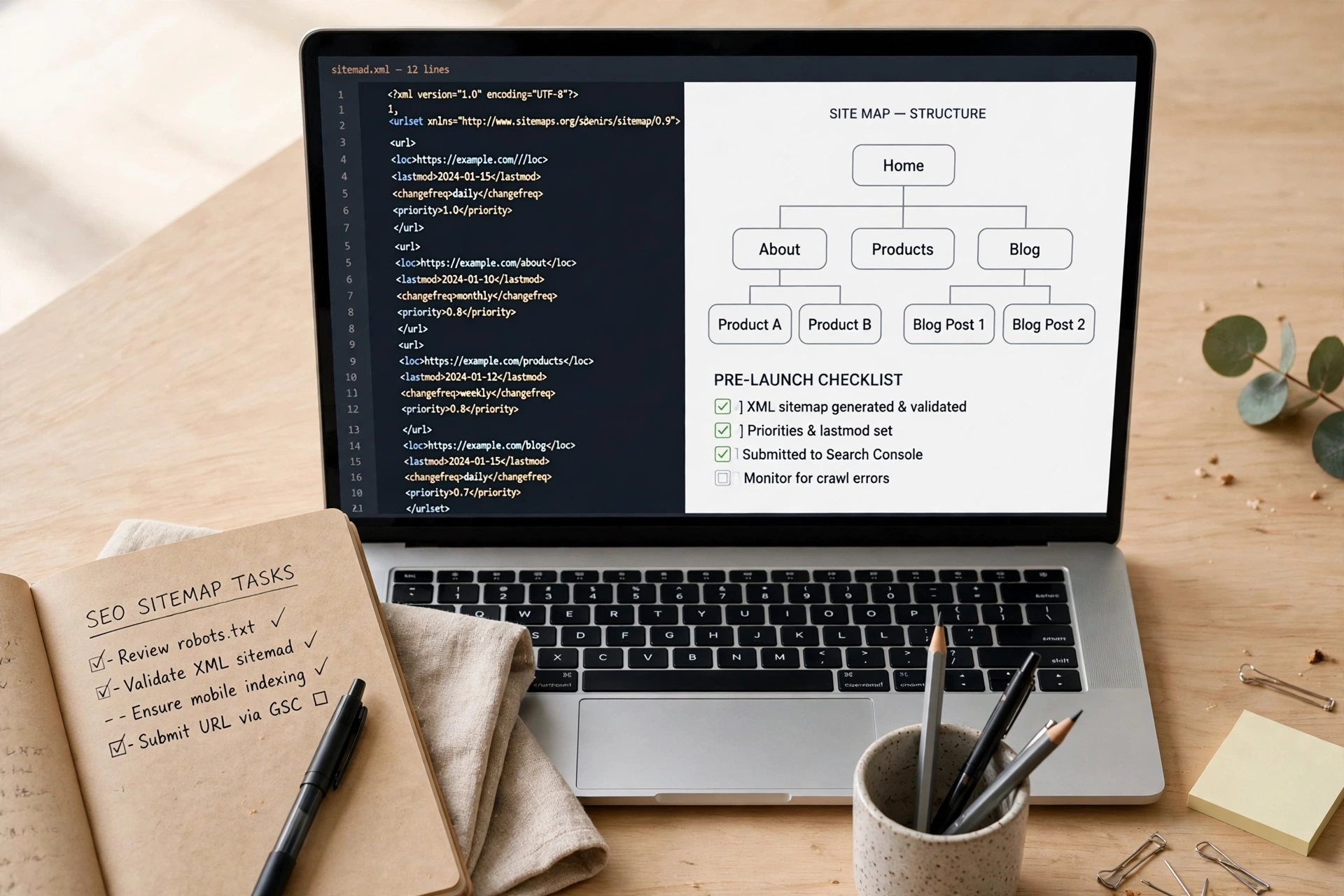
Google does not index pages the moment they are published. A new page on an established site may appear within days; a page on a brand-new site with no links pointing to it can take weeks. Help discovery along: make sure the page is linked from your menu, a category page or other relevant pages on your site. A page with no internal links — an orphan page — is hard for Google to find and signals that even you do not consider it important. Add the site to Search Console, verify ownership and submit a valid XML sitemap listing your real, canonical pages. See getting your website indexed by Google and the Google Search Console guide. Once the page is well linked, patience is often all that is needed. You can use "Request indexing" in URL Inspection to ask Google to crawl it sooner, but repeated requests do not speed things up further.
Reason 2: Something is blocking the crawl or the index
Work through these in order — they are the quickest wins, and one of them is the cause more often than people expect.
Robots.txt is blocking Googlebot. A Disallow rule stops crawling, which also means Google cannot see a noindex tag on that page. Check your robots.txt and make sure no rule matches the page’s path for Googlebot. Note the distinction: robots.txt stops crawling, not indexing — if you want a page out of Google, allow crawling and add noindex; if you want it in, clear the block.
A noindex tag was left on. Look for the meta robots noindex tag in the page source, and check response headers too, because a noindex can also live there as X-Robots-Tag: noindex. Staging settings leak into production this way all the time, and in WordPress the "Discourage search engines from indexing this site" checkbox under Settings → Reading does the same thing site-wide. Remove the tag or untick the box, then request indexing.
The wrong canonical is declared. A canonical link pointing at your homepage, an old URL or the http version tells Google to index that other URL instead. Google treats canonical as a strong hint, not an order, so if your redirects, internal links and sitemap all point elsewhere, Google may pick that version anyway. Make all of them agree on one URL.
The page returns the wrong status. An indexable page should normally return HTTP 200. A 301 or 302 sends Google elsewhere, a 404 or 410 says the page is gone, and a 5xx response says the server failed. A soft 404 is sneakier: it returns 200 but looks empty or broken. Check the raw status, not just what loads in your browser.
Reason 3: Google crawled it and chose not to index it
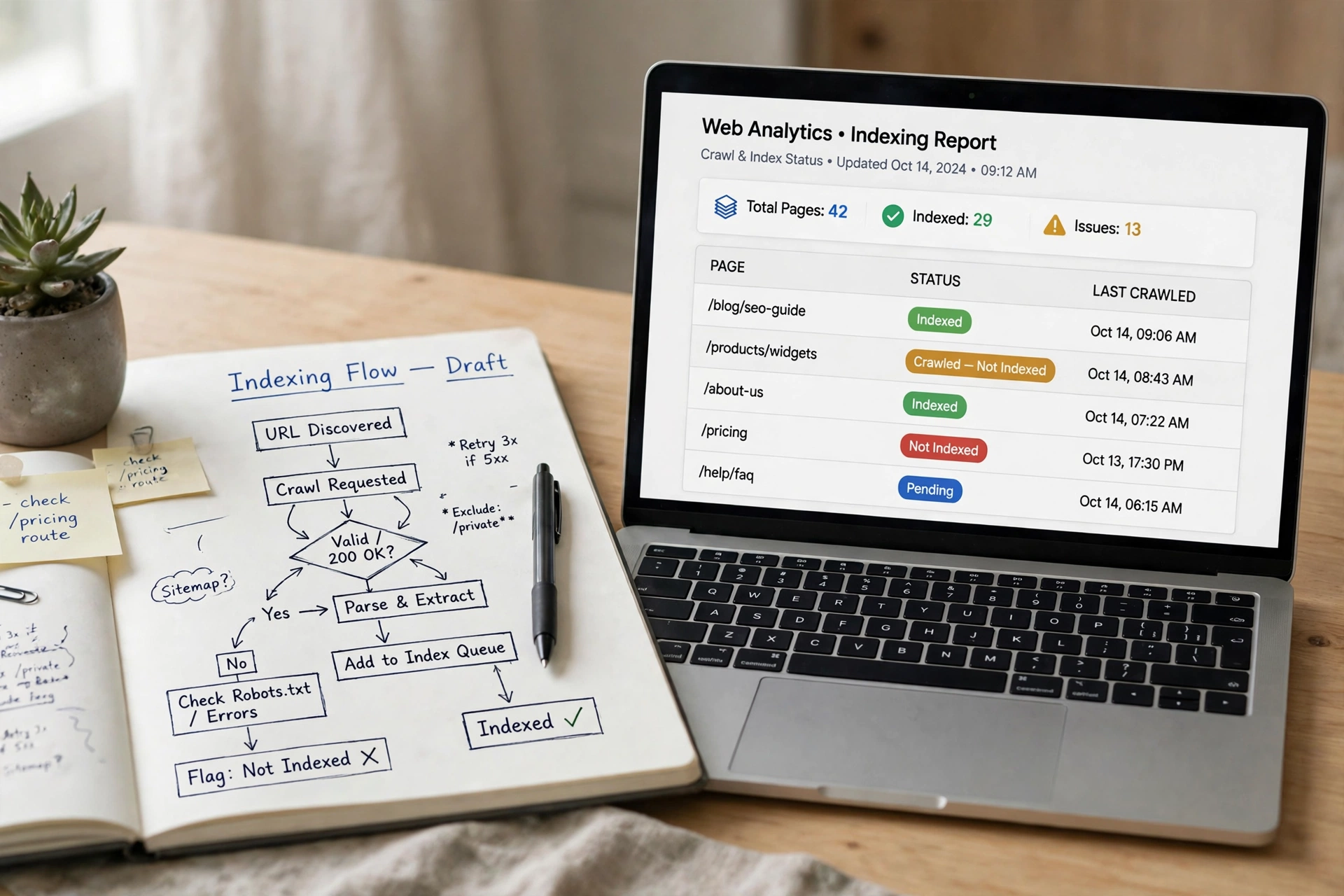
Search Console’s "Crawled — currently not indexed" status means Google read the page and decided, for now, not to add it as a separate result. "Discovered — currently not indexed" is similar but earlier in the queue. Neither is an error message, and neither is fixed by requesting indexing again without changing anything. The usual causes are quality and duplication: the page is thin, very similar to other pages, or adds nothing beyond what is already indexed. Pages that tend to be skipped include near-empty category pages, product pages carrying only a manufacturer description, location pages that differ only by city name, auto-generated tag pages and short posts that repeat what other pages already say. The fix is about the page itself: add genuinely useful, specific content; merge several weak pages into one stronger page; strengthen internal links from relevant, important pages; and remove or noindex low-value pages you do not need indexed. Then wait for a recrawl — this one takes time, and that is normal.
If the page is indexed but not ranking
This is a different problem with a different clock. A page can be indexed within days and still take months to rank for a competitive non-brand term. Ask three questions: does the page actually match what the searcher wants (search intent), does it answer that need better than the pages already ranking, and is it linked from pages Google already trusts on your site? Also check the basics: is the page slow or broken on mobile, does its title describe the topic plainly, and does it cover the topic in enough depth that a reader does not need to bounce back to search? Small, specific improvements beat chasing a ranking formula that does not exist.
A diagnostic checklist you can reuse
- Search your brand name and a quoted sentence from the page.
- Inspect the exact URL in Search Console — read the status, don’t guess.
- Check discovery: sitemap, internal links, no orphan pages.
- Check access: HTTP 200, no robots.txt block, no noindex tag or header.
- Check canonical: one agreed URL across canonical, links, redirects and sitemap.
- Check value: if "Crawled — currently not indexed," improve or consolidate the page.
- If indexed but invisible, work on intent match, depth and internal links — and give it time.
Frequently asked questions
How long does it take a new website to appear on Google? There is no fixed time. A homepage on a well-linked site can appear within days; deeper pages on a brand-new site with no inbound links can take weeks. Search Console’s URL Inspection tool shows the actual status for each URL.
Does submitting a sitemap guarantee indexing? No. A sitemap helps Google discover URLs; it does not guarantee any of them will be indexed or ranked.
Should I keep requesting indexing? Request it once after fixing a real problem. Repeated requests for an unchanged page do not help and do not override a quality or duplication decision.
Why does my site show for its name but not for its topic? Because brand-name searches have almost no competition, while topic searches do. Showing for your name proves you are indexed; ranking for a topic is a separate, longer contest over relevance and usefulness.
Is the site: search a reliable index count? No. It is a rough check that a page is indexed, but it is incomplete and should not be used as a full count of indexed pages.
Bottom line
Start with URL Inspection, not with guesses. If the page is not indexed, the cause is usually discovery, a block, or a value judgement by Google — and each has a different fix. If it is indexed, the work shifts from technical repair to making the page genuinely the best answer for its query. Either way, the diagnosis comes first.





2 thoughts on “Why Your Website Is Not Showing Up on Google”