Introduction
Bluetooth is supposed to be invisible: you turn on your headphones, they connect, and the music plays. When it does not work, the cause is rarely obvious — a device that will not pair, headphones that connect but stay silent, and a speaker that drops out every few minutes are three different faults, and the fix for one will not fix the others.
This guide organises the fixes by symptom, so start with the one that matches your problem and work through the steps in order — from the quick checks that solve most cases to the last-resort reset. It covers iPhone and Android, headphones, speakers, car systems, and keyboards, and ends with a test that tells you whether the fault is in your phone or the accessory. If your problem is Wi-Fi rather than Bluetooth, see How to Fix Wi-Fi Connected but No Internet.
First, match your symptom to the fix
| Symptom | Most likely cause | Start with |
|---|---|---|
| The device never appears | Not in pairing mode, already connected elsewhere, or out of range | Step 1 |
| It appears but pairing fails | Stale pairing record or wrong PIN | Step 4 |
| It pairs but there is no sound | Wrong audio profile or volume | Step 5 |
| It connects, then drops repeatedly | Interference, battery saving, or low battery | Steps 2 and 6 |
| It works with one device but not another | A fault on one side — phone or accessory | Step 8 |
If more than one symptom applies, work through the steps in order, from fastest to most disruptive. Do not jump to a network reset before trying the five-minute fixes.
Step 1: Put the accessory in pairing mode — properly
This is the most common cause of a device that never appears. Being switched on is not the same as being in pairing mode: most accessories only broadcast for pairing for a short window after you activate it, and many stop broadcasting once they connect to anything else.
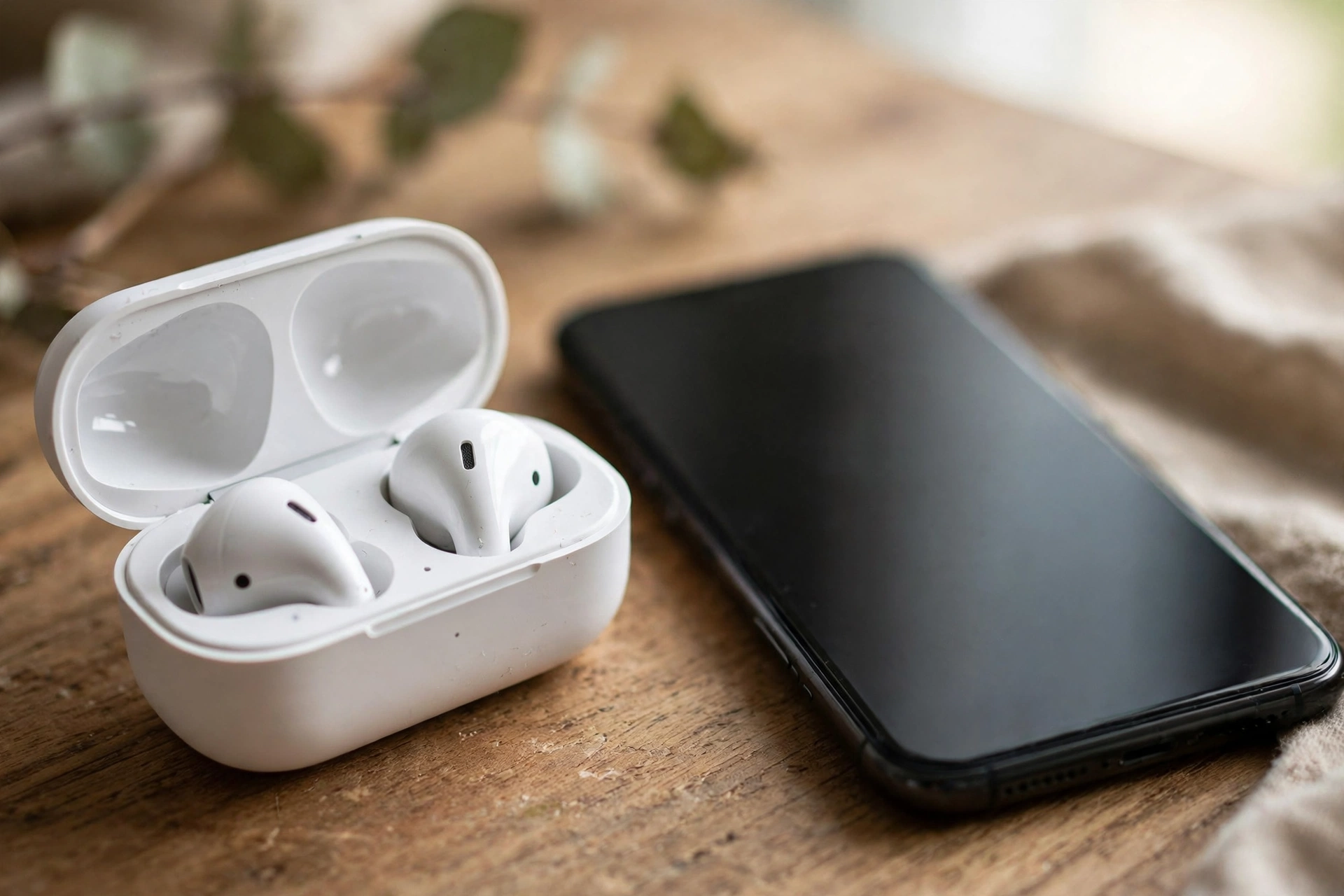
The gesture varies by device, so check the maker’s manual: headphones and earbuds usually need a long press on the power or pairing button (often 5 to 10 seconds) until a light flashes blue and red, or white on newer models — on some earbuds the button is on the charging case. Speakers usually have a dedicated Bluetooth button; car pairing starts from the car’s infotainment screen; keyboards and mice usually have a pairing button on the underside.
While you do this, keep the phone’s Bluetooth screen open — Settings > Bluetooth on iPhone, or Settings > Connected devices on Pixel and most Android phones (on Samsung, Settings > Connections > Bluetooth). Accessories usually appear under “Other Devices” or “Available devices.” For Google’s Fast Pair accessories, the phone needs to be within about 0.5 metres (1.6 feet) of the accessory during setup. If the accessory still does not appear, check that it is charged and that it is not already connected to another device, such as a laptop in the next room.
Step 2: Check range and interference
Bluetooth is a short-range radio sharing the 2.4 GHz band with Wi-Fi routers, microwaves, and other wireless devices — which is why a connection can work in one room and stutter in another.
For pairing, keep the phone and accessory within a metre or two. For everyday use, staying within about 10 metres (30 feet) with a clear line of sight is reasonable; walls, metal objects, and your own body weaken the signal. If the connection only drops in one spot, try moving, or switch your Wi-Fi network to the 5 GHz band if your router offers one.
Interference usually shows up as stuttering or dropouts. If the accessory never appears at all, it is unlikely to be the cause — go back to pairing mode.
Step 3: Restart both devices
Restart the phone completely — power it off, wait a few seconds, and turn it back on — and do the same with the accessory. On some earbuds, returning them to the charging case for 30 seconds does the same. For a quicker try first, toggle Airplane Mode on for about 15 seconds and then off again; it resets the Bluetooth radio more thoroughly than toggling Bluetooth alone.
Step 4: Forget the device and pair it again
A saved pairing record can become stale or corrupted — after a software update, after the accessory’s firmware changed, or simply over time. The symptom is distinctive: the device shows in your list but will not connect, it connects and immediately drops, or it shows as connected with no audio. Removing the old record and pairing fresh fixes many stubborn cases.
On iPhone: Settings > Bluetooth, tap the info button (i) next to the accessory, tap Forget This Device and confirm. Then put the accessory back into pairing mode and tap it under Other Devices, entering the manufacturer’s PIN if asked. If no PIN is given, try 0000 or 1234.
On Android: Settings > Connected devices > Saved devices (Pixel and most stock Android phones; on Samsung, Settings > Connections > Bluetooth), tap the gear icon next to the accessory, then tap Forget or Unpair. Then put the accessory back into pairing mode and pair it again.
Forgetting is not the same as disconnecting: disconnecting ends the connection but keeps the record, while forgetting deletes the record. On iPhone, forgetting an accessory can remove it from other devices signed in to the same Apple Account. For car systems, forget on both sides — remove the phone from the car’s paired list as well as the car from the phone — then pair from scratch.
Step 5: Check the audio profiles — pairs but no sound
If the accessory pairs successfully but music or calls do not come through, the pairing is fine. The problem is which audio the connection is carrying.
On Android: Go to Settings > Connected devices, tap the gear icon next to the accessory, and check the toggles. Media audio controls music and video; Phone audio controls calls. Turn on the one you need — both can be off independently, which is why headphones can work for calls but stay silent for music. Also raise the volume on both sides.
On iPhone: Make sure the audio output is routed to the accessory. During playback, open Control Center, tap the AirPlay or audio output icon, and select the accessory.
If sound is present but stutters, is very quiet, or jumps when you adjust it, the likely culprit is Absolute Volume, which ties the phone and headset volume to a single scale. On Android, switch it off in Developer options: tap Build number seven times under Settings > About phone, then open Settings > System > Developer options, scroll to Networking, and turn on Disable absolute volume. Reconnect and test again.
Step 6: Check device limits and multipoint confusion
A phone can stay paired with many devices, but only a few can be actively connected at once, and most headphones can only hold one or two active connections. When the limit is hit, the newest connection quietly fails — or steals the connection from another device.
Many modern headphones support multipoint: they stay connected to a phone and a laptop at once and switch audio between them. If audio keeps going to the wrong device, disconnect the accessory from the device you are not using, or turn multipoint off in the companion app. Classic Bluetooth supports up to seven active connections in theory, but in practice a phone handles only a handful of audio streams reliably. Some accessories can also only remember a few paired devices; if yours has reached its limit, clear its saved pairings using the reset procedure in the maker’s manual.
Step 7: Update firmware and software
Bluetooth problems that start after an update — on either side — are often fixed by the next update. On the phone, go to Settings > General > Software Update (iPhone) or Settings > System > Software update (Android) and install any pending update, then forget and re-pair the accessory. For the accessory, check the maker’s companion app for a firmware update and install it with the accessory charged and nearby.
Step 8: Test the accessory with a second device
This step tells you where the fault lives, and it should come before any reset. Pair the accessory with a different phone, tablet, or laptop.
- It works fine on the second device: The fault is on your phone — keep working through the phone-side steps, including the network reset below.
- It fails on the second device too: The fault is in the accessory. Check its battery, firmware, and the maker’s support page, and try the accessory’s own factory reset from its manual.
If a different accessory also fails on your phone, the phone is the common factor. If several known-good accessories all fail on the same phone, or Bluetooth will not turn on, stop re-pairing and contact the phone maker.
Step 9: Reset network settings — the last resort
A network settings reset clears all saved Wi-Fi networks and passwords, all Bluetooth pairings, and any VPN or cellular settings. It sits last because it also undoes every Wi-Fi password you have saved.
On iPhone: Settings > General > Transfer or Reset iPhone > Reset > Reset Network Settings. Enter your passcode and confirm; the phone will restart.
On Android: Settings > System > Reset options > Reset Wi-Fi, mobile & Bluetooth (on Samsung, Settings > General management > Reset > Reset network settings). Confirm, then re-pair your accessories from scratch and test before restoring other pairings. If Bluetooth still fails, the remaining explanation is hardware — contact the phone maker’s support or an authorised repairer.
FAQ
Why won’t my Bluetooth headphones show up on my phone?
Usually they are not in pairing mode. Being switched on is not enough — most headphones need a long press on the power or pairing button until a light flashes. Other common reasons are a low battery and a connection to another device.
Why does my Bluetooth keep disconnecting?
Repeated drops usually come from interference, distance, low battery on either side, or the phone’s battery optimisation putting Bluetooth to sleep when the screen is off. Move closer, move away from Wi-Fi routers and microwaves, and charge both devices.
How do I reset Bluetooth on my phone?
There is no single “reset Bluetooth” button. The closest steps, in order, are: toggle Bluetooth off and on, restart the phone, forget the problem device and pair it again, and — as a last resort — reset network settings, which clears all Bluetooth pairings and Wi-Fi passwords.
Can too many paired devices cause Bluetooth problems?
Yes. A phone can remember many pairings but only hold a few active connections, and many headphones can only remember a small number of paired devices. Delete pairings you no longer use.
Should I reset network settings to fix Bluetooth?
Only after the simpler steps have failed. A network reset fixes corrupted system Bluetooth settings, but it also deletes every saved Wi-Fi password and Bluetooth pairing.
The bottom line
Most Bluetooth problems are not hardware failures. They are a pairing that went stale, an accessory that was never actually in pairing mode, an audio toggle that is off, or a connection limit quietly reached. Work by symptom, change one thing at a time, and use the second-device test before you reset anything — it is the fastest way to find out whether your phone or your accessory is at fault. When the problem turns out to be the Wi-Fi side of the same crowded radio band, our guide on how to fix Wi-Fi that is connected but has no internet picks up where this one leaves off.