Introduction
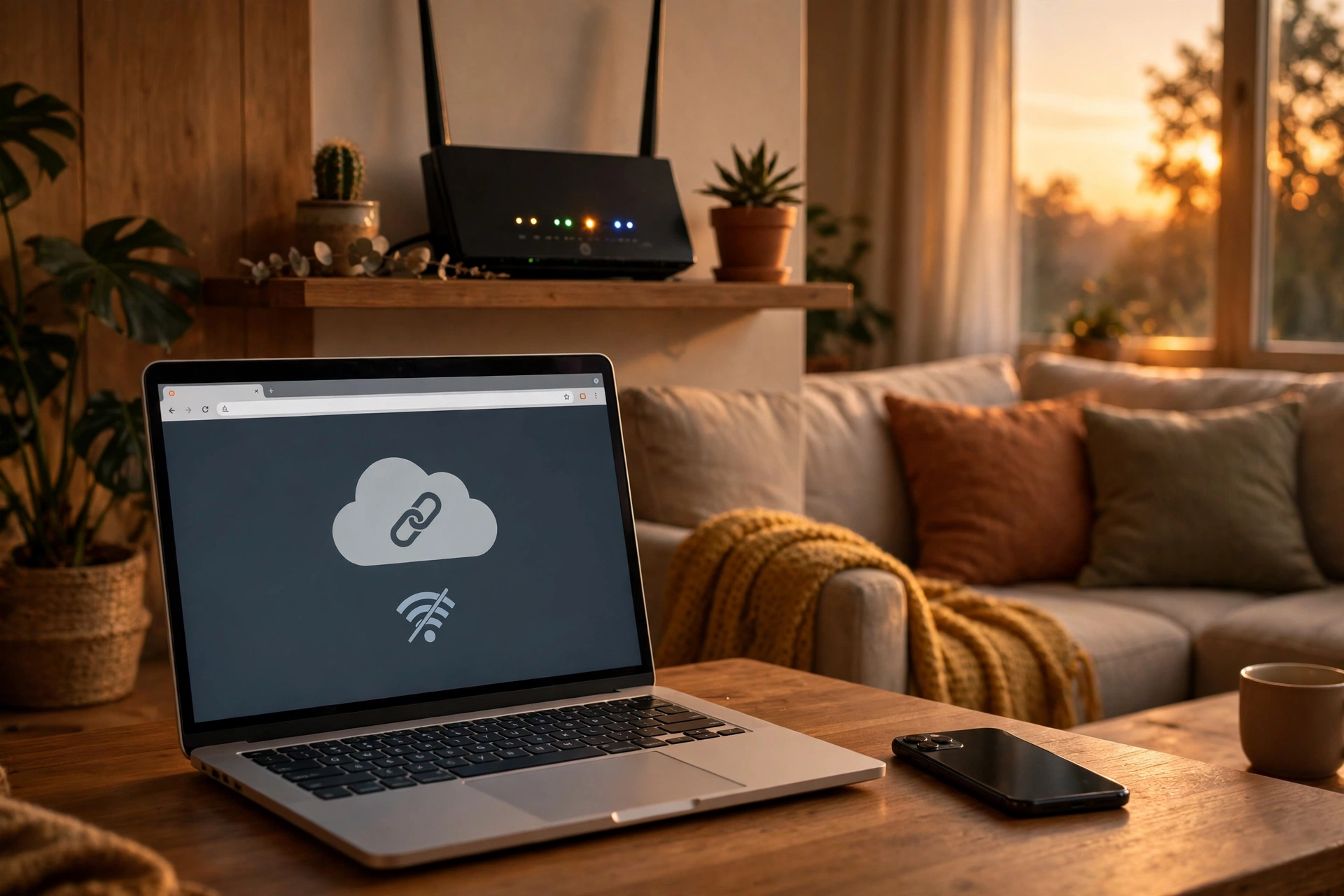
Few tech frustrations are as confusing as this one: your phone or laptop says it is connected to Wi-Fi, the signal bars look full, and yet nothing loads. No websites, no email, no streaming. The icon is telling the truth — and also misleading you. Being “connected to Wi-Fi” only means your device can talk to your router. It says nothing about whether the router can reach the internet.
That distinction is the key to the whole fix. The fault sits somewhere along a short chain — your device, the router, the modem, or your internet provider — and the fastest way to fix it is to find which link is broken before changing any settings. This guide does exactly that: a two-minute scope test first, then the safe fixes in order, for Windows, Mac, iPhone, iPad and Android. Every step follows the current troubleshooting guidance published by Microsoft and Apple, checked in November 2026. Work through them in order and stop as soon as your connection returns — there is no need to run the later, more disruptive steps once you are back online.
Step 0: The two-minute scope test
Before you touch a single setting, answer three questions. The answers tell you where the problem lives and save you from “fixing” a laptop when the fault is your provider’s outage.
1. Is it one device or every device? Try the same Wi-Fi network on a second device. If only one device is offline, the problem is on that device: its saved network settings, its IP address, its DNS settings, or a VPN or proxy getting in the way. If every device is offline, the problem is the router, the modem, or the provider — skip the device fixes and go straight to the router restart in Step 2.
2. Does a wired connection work? If your laptop has an Ethernet port, plug it directly into the router with a cable. If wired internet works while Wi-Fi does not, the router’s internet connection is fine and the problem is specifically the wireless side. If wired internet also fails, the problem is upstream: modem, line, or provider.
3. Is there an outage? Check your provider’s outage map or status page — most providers publish one on their website or in their app — or ask a neighbour on the same provider. If there is a reported outage in your area, no amount of restarting your own equipment will help.
Note what you found: one device or all, wired or wireless, outage or not. That note is also useful if you end up calling your provider — it tells the support agent exactly what you have already ruled out.
Why “connected” does not mean “online”
On Windows, Microsoft explains the mechanism plainly: Windows decides whether you have internet by sending a small HTTP request to a server on the internet. If nothing comes back, it shows the “No Internet” icon — a globe, or the words “No Internet, Secured” under your network name. Your PC is still connected to the local network, and you can often still see other devices on it, but browsing, email and streaming all fail. The icon tells you that the internet is unreachable, not why.
The usual culprits, in rough order of likelihood: a router or modem needing a restart, a stale saved network profile (often after a router password change), a bad IP address from the router, wrong DNS settings, a leftover VPN or proxy, a router or ISP outage, or — least often — a driver problem. The steps below take them in that order.
Step 1: Toggle Wi-Fi and restart the device
Start with the two cheapest moves. On any device, turn Wi-Fi off, wait a few seconds, and turn it back on. On Windows, also check that Airplane mode is off — with it on, all wireless radios are disabled. On iPhone and iPad, check the same in Settings: Wi-Fi on, Airplane Mode off.
Then restart the device itself — the phone, the laptop, the tablet. A restart clears temporary network state that a Wi-Fi toggle does not, and it is the step Apple recommends early in its own troubleshooting. Test again before moving on.
Step 2: Restart the modem and router — in the right order
If more than one device is offline, or the single-device fixes do not help, restart your network equipment. This is the single most effective fix for “every device shows connected but no internet,” because it clears the router’s and modem’s temporary state and forces a fresh connection to your provider.
- Unplug the modem and the router from power. If they are a single combined unit, unplug that one box.
- Leave them unplugged for about 30 seconds.
- Plug the modem back in first and wait until its lights settle — usually a minute or two. Then plug the router back in and wait for its lights to stabilize.
- Reconnect your device and test.
A power cycle is not a factory reset. Do not press the small Reset pinhole on the back of the router unless you intend to erase its configuration — name, password and all — and set it up again from scratch. If every device is still offline after the restart, the fault is almost certainly with the line or the provider: check the outage page again and then contact your ISP.
Step 3: Forget the network and reconnect
If the problem is on one device, the saved network profile may be stale or corrupt — a common result after a router password change. Forgetting the network deletes the saved password and settings for that network only; it does not delete anything else on the device. Have the Wi-Fi password ready before you start, because you will need it to rejoin.
- Windows 11: Settings > Network & internet > Wi-Fi > Manage known networks. Select your network, choose Forget, then reconnect and enter the password.
- iPhone / iPad: Settings > Wi-Fi, tap the information button (the blue “i”) next to your network, tap Forget This Network, confirm, then select the network again and re-enter the password.
- Mac: System Settings > Wi-Fi, find the network and remove it (in older macOS versions this is under System Preferences > Network > Wi-Fi > Advanced). Then rejoin.
- Android: Settings > Network & internet (or Connections) > Wi-Fi, tap the network, choose Forget, then reconnect.
If you are on a public or hotel network and the connection still fails, the network may need you to complete a sign-in or terms page — a “captive portal.” Open your browser and try loading a plain page; the sign-in page should appear. On an iPhone, opening captive.apple.com in Safari can also bring it up. Until that page is completed, the network will show as connected with no internet.
Step 4: Check for a VPN, proxy, or privacy setting
A VPN that is not connecting properly, or a proxy left over from an old setup, can block all traffic while Wi-Fi itself works fine. This is a common cause on laptops once configured for an office network.
- Windows: Go to Settings > Network & Internet > Proxy and check that no manual proxy is set unless you know your network needs one. Also disconnect your VPN app temporarily and test.
- iPhone / iPad: Go to Settings > VPN and disconnect it. Also check the network’s information screen: if “Private Wi-Fi Address” or “Limit IP Address Tracking” is on, try turning it off temporarily — Apple’s randomized address feature can clash with routers that use MAC filtering, especially on public networks.
- Mac and Android: Disconnect any VPN app and check for proxy settings in the network settings.
If turning the VPN off fixes the problem, the VPN itself is the fault — check its settings or contact the VPN provider, rather than changing your Wi-Fi setup.
Step 5: Renew the IP address and flush DNS (Windows)
If your Windows PC connects to Wi-Fi but gets no internet, it may have failed to get a usable address from the router. Microsoft’s own support page gives this check: open Command Prompt as an administrator and run ipconfig, then look at the IPv4 address under your Wi-Fi adapter. If it starts with 169.254, Windows did not get an address from the router — restart the router first (Step 2), because no device-side command will fix that. If the address looks normal, such as 192.168.x.x, the link to the router is probably working and the problem is further along.
In the same administrator Command Prompt, run these commands one at a time, as listed in Microsoft’s troubleshooting guide:
ipconfig /release
ipconfig /renew
ipconfig /flushdns
The first two drop the old address and ask the router for a fresh one; the third clears the DNS cache, which fixes cases where the PC resolves website names to stale or wrong addresses. Microsoft also lists two deeper stack commands — netsh winsock reset and netsh int ip reset — for a damaged network stack, followed by a restart. Run them only if the ipconfig commands did not help.
If websites still will not load, DNS may be the problem. In Windows 11, go to Settings > Network & internet > Wi-Fi > Hardware properties > DNS server assignment and click Edit. You can switch from automatic to a public DNS service — Google’s 8.8.8.8 and 8.8.4.4 and Cloudflare’s 1.1.1.1 are the widely used options. Note the original setting before you change it so you can switch back.
On iPhone, iPad and Mac, the equivalent of renewing the address is the “Renew Lease” option on the network’s information screen. On a Mac you can also remove the network and rejoin, which forces a fresh address.
Step 6: Run the troubleshooter, then check the driver (Windows)
Windows 11 includes an automated Network and Internet troubleshooter, and Microsoft recommends running it before manual steps on a Windows 11 device: open the Get Help app and run the Network and Internet troubleshooter, which diagnoses the adapter, IP settings and DNS and attempts fixes automatically. On Windows 10 it sits at Start > Settings > Network & Internet > Status > Network troubleshooter. On Windows 11 there is also a route through Settings > System > Troubleshoot > Other troubleshooters > Network Adapter > Run.
If the troubleshooter points at the adapter, or if the Wi-Fi toggle is missing and no networks appear at all, the problem is probably at the driver layer. Check for Windows updates first — a pending update can include the driver fix. If that does not help, open Device Manager, find the wireless adapter under Network adapters, and update or reinstall its driver. If you have no internet on that PC at all, download the driver on another device from the laptop manufacturer’s support site, copy it over on a USB drive, and install it there.
Step 7: Network reset — the last resort
If nothing above worked, Windows offers Network Reset: Settings > Network & internet > Advanced network settings > Network reset > Reset now. This removes and reinstalls all network adapters and their settings, returning them to their defaults. Use it only as a last resort, because it erases all saved Wi-Fi networks and passwords, and you may need to reinstall VPN software or other network tools afterwards. Restart the PC after the reset and rejoin your network.
On an iPhone or iPad the equivalent is Reset Network Settings: Settings > General > Transfer or Reset iPhone > Reset > Reset Network Settings. Like the Windows reset, it erases saved Wi-Fi networks and passwords, plus cellular and VPN settings, so use it only after the earlier steps.
When to call your ISP
Contact your internet provider when any of these is true: every device is offline even after the modem and router restart; a wired Ethernet connection to the router also has no internet; the modem’s lights show no connection (often a red or blinking “internet” or “WAN” light) after the restart; or the provider’s status page shows an outage with no estimated fix time.
Before you call, have the results of your scope test ready: which devices are affected, whether wired works, what the modem lights show, and what you have already tried. That turns a long support call into a short one. Note the time the problem started, too — if it began after a storm, roadworks nearby, or a provider visit, say so; it points the agent at the line rather than your equipment.
Quick-reference: what to try, in order
| Situation | Try first |
|---|---|
| One device offline, others fine | Toggle Wi-Fi, restart the device, forget and rejoin the network |
| Every device offline | Check for an outage, then restart the modem and router |
| Wired works, Wi-Fi does not | Forget and rejoin, check the router’s Wi-Fi settings |
| Wired also fails | Restart the modem and router, then call the ISP |
| Websites fail but apps work (or vice versa) | Flush DNS, check proxy and VPN, try a different DNS server |
| Wi-Fi toggle missing, no networks listed | Run the troubleshooter, update or reinstall the adapter driver |
| Nothing else worked | Network reset (Windows) or Reset Network Settings (iPhone/iPad) |
FAQ
Why does my Wi-Fi say “connected” but nothing loads?
Because “connected” only means your device reached the router. The internet path beyond the router — the modem, the line, the provider, DNS — can still be broken. The scope test at the top of this guide finds which part is broken.
Does restarting the router really help?
Yes, often. It clears temporary state in the router and modem and forces a fresh connection to your provider. Unplug both for about 30 seconds, plug the modem back in first, wait for its lights to settle, then the router.
What does a 169.254 IP address mean?
It means Windows could not get an address from the router. On Windows, run ipconfig in Command Prompt to check. The fix is usually a router restart, not a change on the PC.
Should I press the Reset button on my router?
No — not as a troubleshooting step. The pinhole Reset button performs a factory reset that erases the router’s name, password and settings. A power cycle (unplug, wait 30 seconds, plug back in) is the safe restart.
The bottom line
“Connected but no internet” is a diagnosis problem, not a settings problem. Test one device against another, test wired against wireless, and check for an outage — those three answers tell you whether the fault is the device, the router, or the provider. Then work the fixes in order: toggle and restart, power-cycle the modem and router, forget and rejoin, check VPN and proxy, renew the IP and flush DNS, and only then reach for network reset. If every device is still offline after a modem and router restart, the answer is a phone call to your provider, not another setting on your laptop.
And if the network giving you trouble is a public one — a cafe, hotel or airport — the rules are different: a network that asks you to sign in is normal, but an open network is also a place to be careful about what you send over it. Our public Wi-Fi safety guide covers what to do and what to avoid. If your connection problems started right after clicking a suspicious link or downloading an unfamiliar file, it is also worth checking the machine itself: our guide to removing malware from a Windows PC walks through that, and our phishing guide explains how those links usually arrive.